How to Check If an APK File Is Safe Before Installing (2026 Guide)
Someone sent you an APK file on WhatsApp, or you downloaded one from a website, and now you are wondering: how to check APK is safe before tapping Install? Good question — asking it already puts you ahead of most people. A bad APK can steal photos, show endless ads, empty accounts or quietly run in the background. The good news is you do not need to be a technical expert to check a file. This guide gives you a simple step-by-step method anyone can follow on an Android phone or computer.
Honest answer first: no check can make an APK 100% guaranteed safe. What these steps do is catch the obvious fakes, tampered files and risky downloads before they touch your phone. And the safest rule never changes: if the same app exists on Google Play, install it from there instead.
Quick Answer: The 2-Minute Safety Check
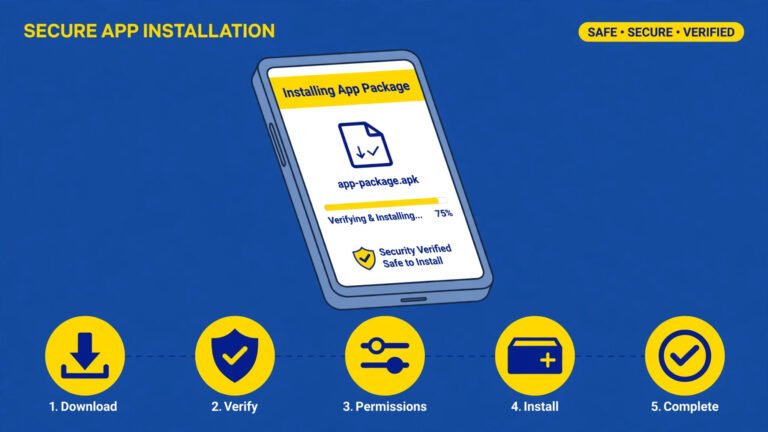
Before installing any APK, do these five things:
- Ask where the file came from — official developer site or a random link?
- Compare the app name, developer and version with the Play Store listing.
- Scan the file on VirusTotal in your browser.
- Read the permissions the installer shows you.
- If anything feels wrong at any step, delete the file. A free app is never worth a compromised phone.
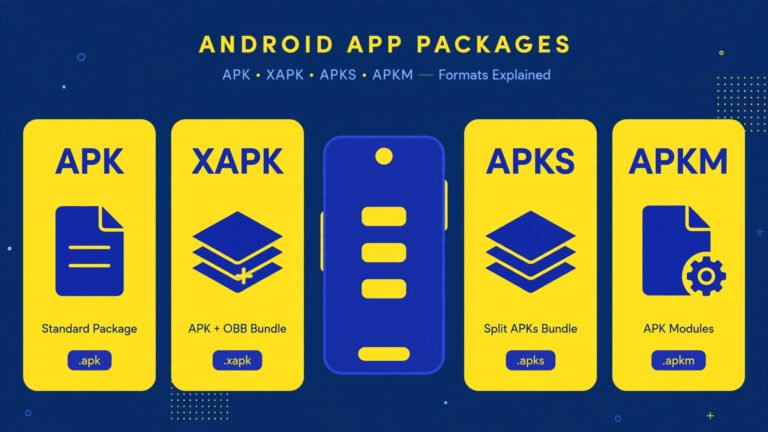
If your download is not even a plain APK — it says XAPK, APKS or APKM — read our APK vs XAPK vs APKS vs APKM difference guide first, because bundle files hide their contents and need extra care.
Table of Contents
Step 1: Check Where the File Came From
The source of the file is the single biggest safety sign. Safe-ish sources look like this:
- The developer’s own official website
- F-Droid, for free and open-source apps
- A backup you made yourself from your own phone
Dangerous sources look like this:
- A forwarded file on WhatsApp or Telegram with no explanation
- A site offering a paid app for free, or a “premium unlocked” / mod version
- A page full of flashing download buttons where every button looks the same
- A shortened link (bit.ly style) sent by a stranger
Mod and premium-unlocked files deserve a special warning. Even when they “work”, someone had to break open the original app and rebuild it. You have no way to know what else they added while doing that. This is also why guides on this site never link to them: they break copyright and they are one of the most common malware carriers on Android.
Step 2: Match the App Name, Developer and Version
Fake apps copy famous names. Before installing, open the Play Store and search the same app name. Compare three things:
| Check | What should match | Red flag |
|---|---|---|
| App name | Exact same spelling as the official listing | Extra words like “Pro”, “Premium Free” or spelling tricks |
| Developer name | Same company/person as on Play Store | Unknown developer with a similar-sounding name |
| Version | A normal recent version number | Version far ahead of Play Store, or no version shown |
| File size | Roughly similar to the Play Store size | Same app but file is many times bigger or tiny |
A mismatch does not always mean malware — developers do publish slightly different builds on their own sites. But a mismatch plus a shady source means stop. Two warnings together is your answer.
Step 3: Scan the File on VirusTotal
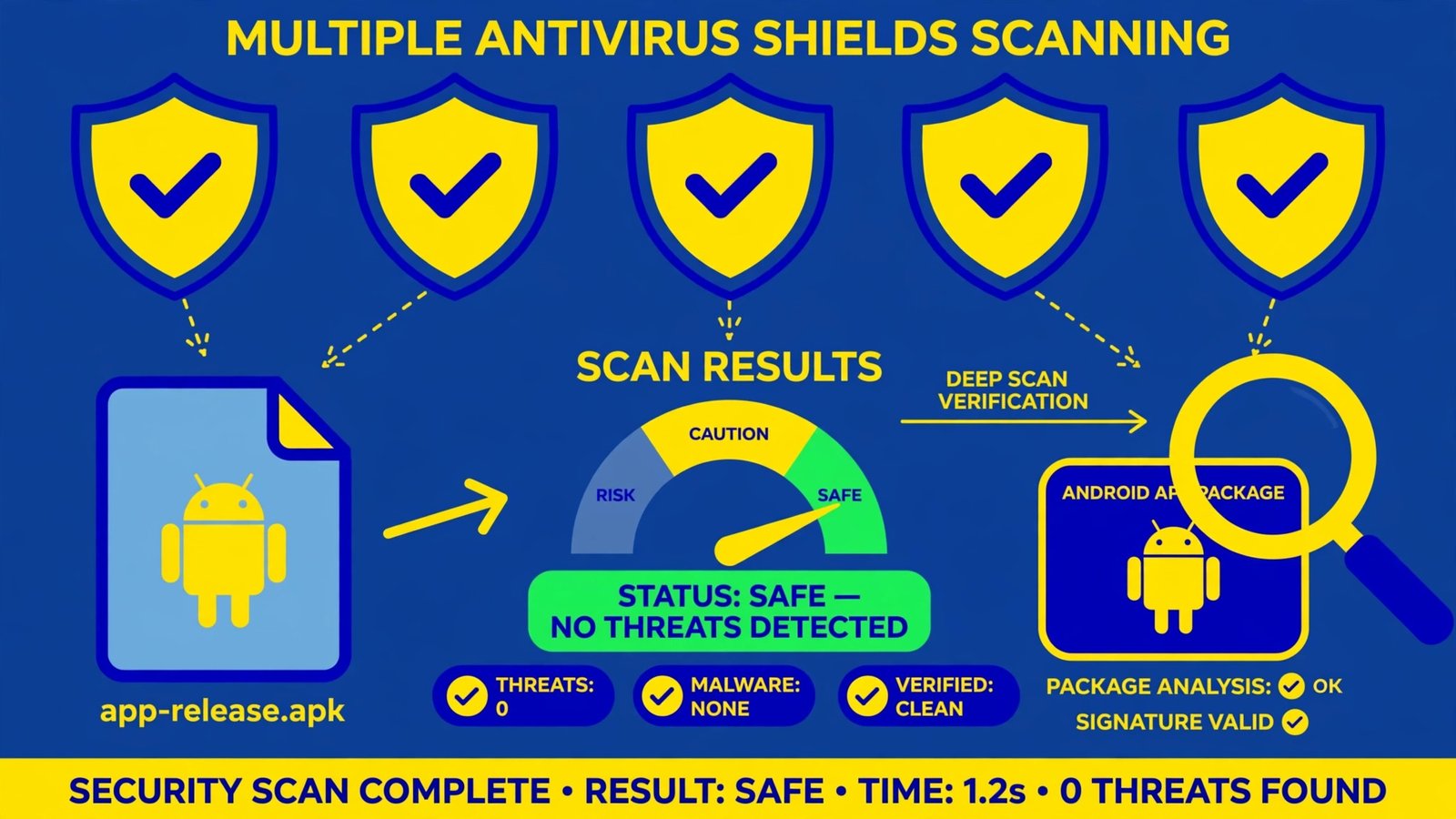
VirusTotal is a free Google-owned service that checks a file with dozens of antivirus engines at once. You do not need an account for a basic scan.
- Open virustotal.com in your browser.
- Choose the File tab and upload the APK from your phone storage or computer.
- Wait for the result page. It shows how many security vendors flagged the file.
- Look at the detection ratio (for example, 0/60 or 3/60) and the names of anything flagged.
How to read the result honestly:
- 0 detections — a good sign, but not a guarantee. New malware sometimes passes early scans.
- 1–2 generic detections — some engines flag almost any file installed outside Play. Look at what the detection actually says; vague “riskware” labels on a file from the official developer are different from named trojans.
- Several clear detections naming trojans, spyware or stealers — delete the file. Do not argue with that result.
One privacy note: anything you upload to VirusTotal becomes visible to security researchers. For a normal app file that is fine, but never upload personal documents or private backups of your own data.
Step 4: Read the Permissions Before You Tap Install
When Android installs an APK, it shows what the app wants access to. Read this screen slowly — it tells the truth even when a website lies. Match permissions to what the app actually does:
| App type | Normal permissions | Suspicious permissions |
|---|---|---|
| Photo editor | Storage/photos, camera | SMS, contacts, accessibility |
| Music player | Storage, notifications | Location always-on, device admin |
| Wallpaper app | Storage, set wallpaper | Read SMS, call logs, install other apps |
| Simple game | Storage, network for ads/leaderboards | Accessibility service, overlay on banking apps |
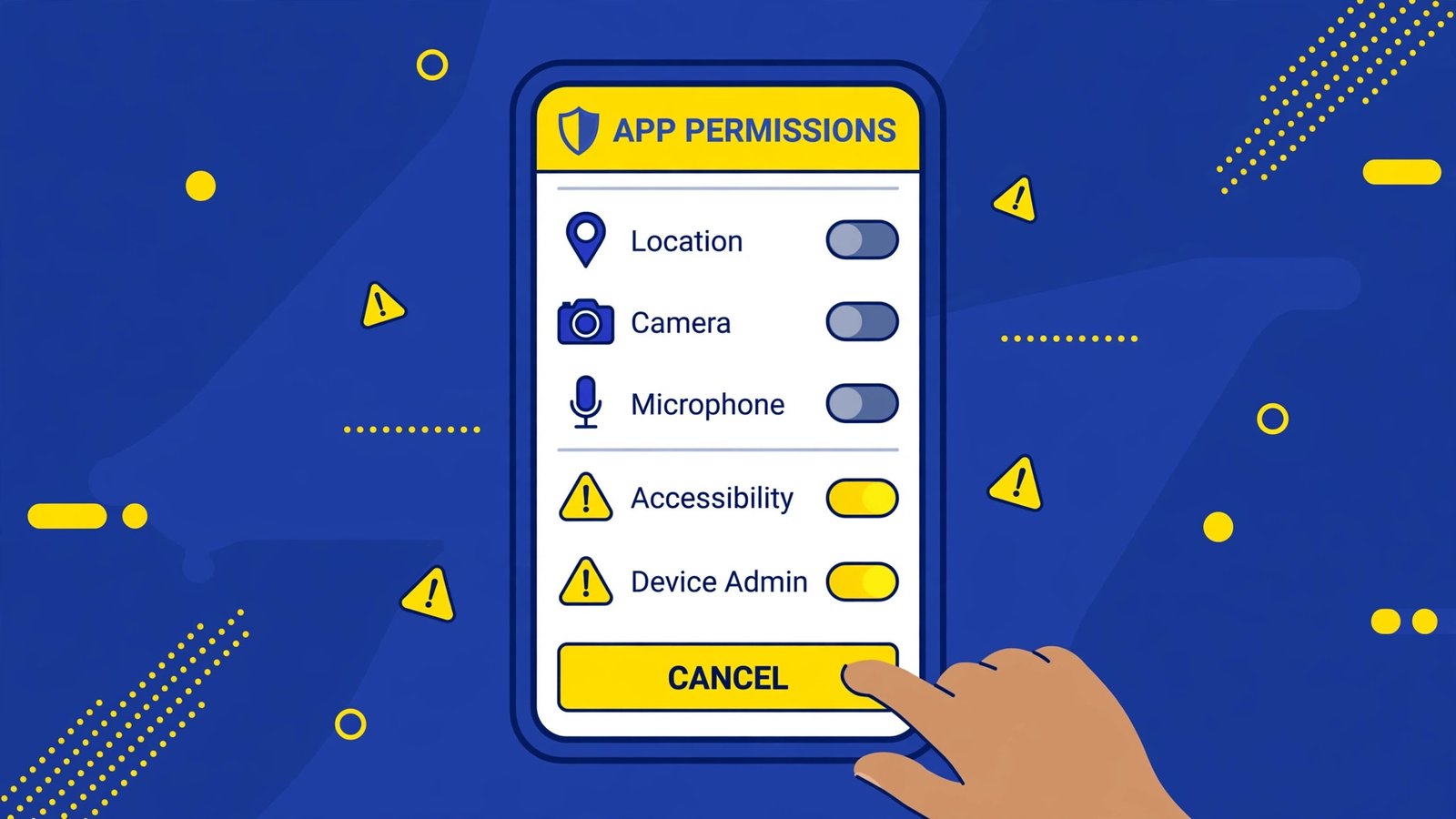
Three permission requests should make you cancel almost every time:
- Accessibility access for an app that is not an accessibility tool — this can let an app read your screen and taps.
- Device admin — makes the app hard to uninstall, a classic trick of stubborn malware.
- Install unknown apps permission for a normal app — it wants to install more things behind your back.
Also watch for an app that asks for everything at install time but explains nothing. Honest developers ask for permissions when you use the related feature, not all at once before the app even opens.
Step 5: Use Play Protect — and Never Turn It Off
Google Play Protect already scans apps on most Android phones, including many installed from outside Play. Check it is on:
- Open Play Store and tap your profile photo.
- Tap Play Protect.
- Make sure “Scan apps with Play Protect” is turned on.
- You can also tap Scan to check your installed apps right now.
If a website or video tells you to disable Play Protect so their file installs, that instruction itself is the biggest red flag of all. Legitimate apps do not need your protection switched off. Close that page and delete the file.
Red Flags: Delete the APK Immediately If You See These
- The file arrived from a stranger with a story like “bank update” or “prize claim”
- The app promises money, followers or premium features for free
- The installer shows a different app name than the one you downloaded
- VirusTotal shows multiple named trojan/spyware detections
- The app asks for accessibility, device admin or SMS access without a clear reason
- The website forced you through many fake download buttons before giving the file
- Play Protect blocks the install and the site tells you to ignore it
Any one of these is enough. You do not need three warnings to make a decision — deleting a file costs nothing, cleaning a hacked phone costs a lot.
What to Do If You Already Installed a Suspicious APK
- Turn on airplane mode to cut the app’s internet connection.
- Uninstall the app from Settings → Apps. If it resists, check Settings → Security → Device admin apps and remove its admin rights first.
- Run a Play Protect scan from the Play Store.
- Change important passwords (email first, then banking) from a clean device if the app had wide permissions.
- If money moved or accounts behave strangely, contact your bank quickly and report it.
And if Android blocked your install attempts with errors along the way, those errors are often protection, not a problem. Our guide on fixing “there was a problem parsing the package” explains which errors mean “broken file” and which mean “Android just saved you”. Signature conflicts after a bad install attempt are covered in our app not installed package conflict guide.
Frequently Asked Questions
Can VirusTotal guarantee an APK is safe?
No scanner can give a 100% guarantee. VirusTotal is a strong filter that catches known and suspicious files, but very new malware can pass. That is why the source check and permissions check in this guide matter just as much as the scan.
Is it safe to install APK files at all?
It can be, when the file comes from the official developer or a trusted open-source store like F-Droid, matches the Play Store details, and passes a scan. The risk comes from random download sites and forwarded files, not from the APK format itself.
Why do mod APKs get flagged so often?
Because someone modified the original app. Antivirus tools rightly treat modified code as suspicious, and some mod builders really do add adware or stealers. There is no way to separate a “clean mod” from a dirty one by looking at it, so the safe answer is to avoid them.
My friend sent me an APK. Is that safe?
Your friend may be honest, but where did they get it? Files get forwarded many times and the original source disappears. Run the same checks — source, matching details, VirusTotal scan, permissions — even for files from people you trust.
What is the single safest habit?
Install from Google Play whenever the app is listed there. Use APK files only for apps that are not on Play, and only from the developer’s own site. That one habit removes almost all of the risk covered in this guide.
Conclusion
Learning how to check APK is safe takes two minutes per file: check the source, match the app details, scan on VirusTotal, read the permissions, and let Play Protect do its job. Skip any file that fails these checks, especially mod and premium-unlocked builds. For more step-by-step Android help written the same safe way, browse our APK Guides — every fix there starts with official sources and ends with your phone still yours.
APKKASH is an independent guide site and is not affiliated with Google, VirusTotal, F-Droid, or any app developer mentioned. Google Play, Play Protect and VirusTotal are trademarks of Google LLC. Always download apps from official sources.
11 Comments