How to Extract APK from Installed Apps: 3 Easy Methods (2026)
Table of Contents
Quick Answer
how to extract apk from installed app: To extract APK from an installed app, the easiest way is a free APK extractor app from the Play Store (like APK Extractor or ML Manager): open it, pick the app, tap Extract — the APK aves to your storage. Advanced users can use ADB (adb shell pm path + adb pull) from a computer. No root needed for either method.
Why Extract an APK?
- Backup your favourite apps before a factory reset or phone switch
- Share an app with a friend who has no internet (via Bluetooth/USB)
- Archive an older version before a buggy update
- Install on a device without the Play Store (some tablets, TV boxes)
Legal note: only extract apps you own for personal backup. Extracting and redistributing paid apps is piracy — do not do it.
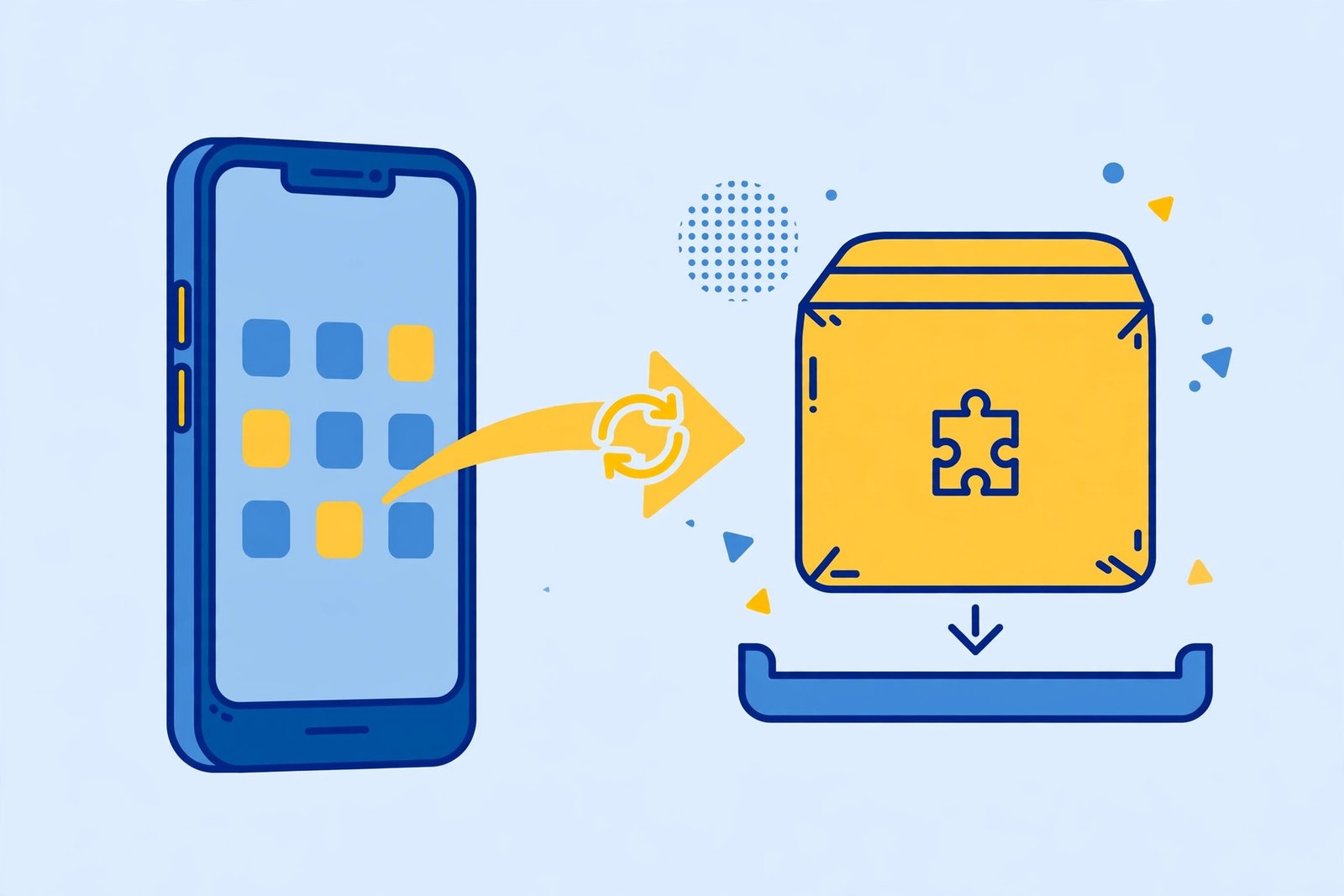
Method 1: APK Extractor App (Easiest, No Root)
- Install APK Extractor (or ML Manager) from the Google Play Store — both are free.
- Open the app — it lists every installed app on your phone.
- Find the app you want and tap Extract (or the download icon).
- The APK is saved to a folder like
Internal Storage/ExtractedApks/. - You can now copy, share, or back up that file anywhere.
This works because Android lets apps read their own APK files through the PackageManager API — no root, no computer needed.
Method 2: ADB from a Computer (No App Needed)
For a precise, app-free approach, use Android Debug Bridge (ADB):
- Enable USB debugging on your phone (Settings → About phone → tap Build number 7 times → Developer options).
- Connect the phone to your computer via USB.
- Find the APK’s location:(Replace
com.example.appwith the real package name.)adb shell pm path com.example.app - Pull the file to your computer:
adb pull /data/app/com.example.app-xxx/base.apk myapp.apk
This pulls the APK straight from Android’s protected app folder — no root required.
Method 3: File Manager (Root Usually Needed)
Some file managers (Solid Explorer, FX File Explorer) can browse to /data/app/ where installed APKs live as base.apk files. On modern Android this folder is protected, so this method usually needs a rooted phone. For most users, Method 1 or 2 is better.
What About Split APKs (App Bundles)?
Many modern apps install as split APKs (base.apk + config files). A basic extractor may only grab base.apk, which might not install alone on another device. If the extracted APK fails to install elsewhere, that is usually why — see our XAPK/APKS install guide.

After Extracting: Install It Safely
An extracted APK installs like any manual APK:
- Copy it to the target device.
- Make sure the architecture matches — check our ARM64 vs Armeabi-v7a guide.
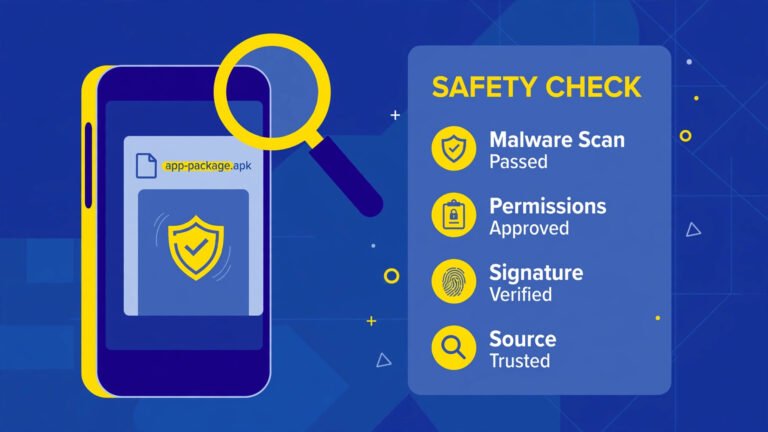
- Follow our safe APK install guide and scan it first with our APK safety checklist.
Frequently Asked Questions
Can I extract APK from any installed app?
Almost — user-installed apps extract fine. Some system apps and apps with anti-tamper protection may fail or produce APKs that do not reinstall elsewhere.
Does the extracted APK include my app data?
No. Extraction copies only the installation package — your logins, settings, and files stay behind.
Is extracting APKs legal?
Extracting apps you installed for personal backup is fine. Sharing or uploading paid apps is piracy and illegal.
Where is the extracted APK saved?
Extractor apps usually save to Internal Storage/ExtractedApks/ or a similar folder — the app shows you the exact path after extracting.
Can I extract APK on a non-rooted phone?
Yes — Methods 1 (extractor app) and 2 (ADB) both work without root.
Why does my extracted APK say “App not installed” on another phone?
Usually a split-APK issue (missing config splits) or an architecture mismatch. Check both before retrying.
Final Words
Knowing how to extract APK from installed apps gives you real control over your software — backups, offline sharing, and version archiving without depending on the Play Store. Use a free extractor app for the 30-second method, ADB when you want precision, and always respect app licences.