How to Install APK on Android Safely: Step-by-Step Guide (2026)
Most apps should come from Google Play. But sometimes an app is not on Play in your country, a developer only publishes on their own website, or you want an open-source app from F-Droid. In those cases you need to know how to install APK on Android the safe way — not the risky way random websites teach. This complete guide walks you through every step, from preparing your phone to fixing install errors, with safety checks built in at each stage.
The golden rule before we start: an APK file is only as safe as the place it came from. This guide is for legal apps from official sources — developer websites, F-Droid, or your own backups. We never recommend mod, cracked or premium-unlocked files, and neither should you install them. They break copyright and are a leading cause of infected phones.
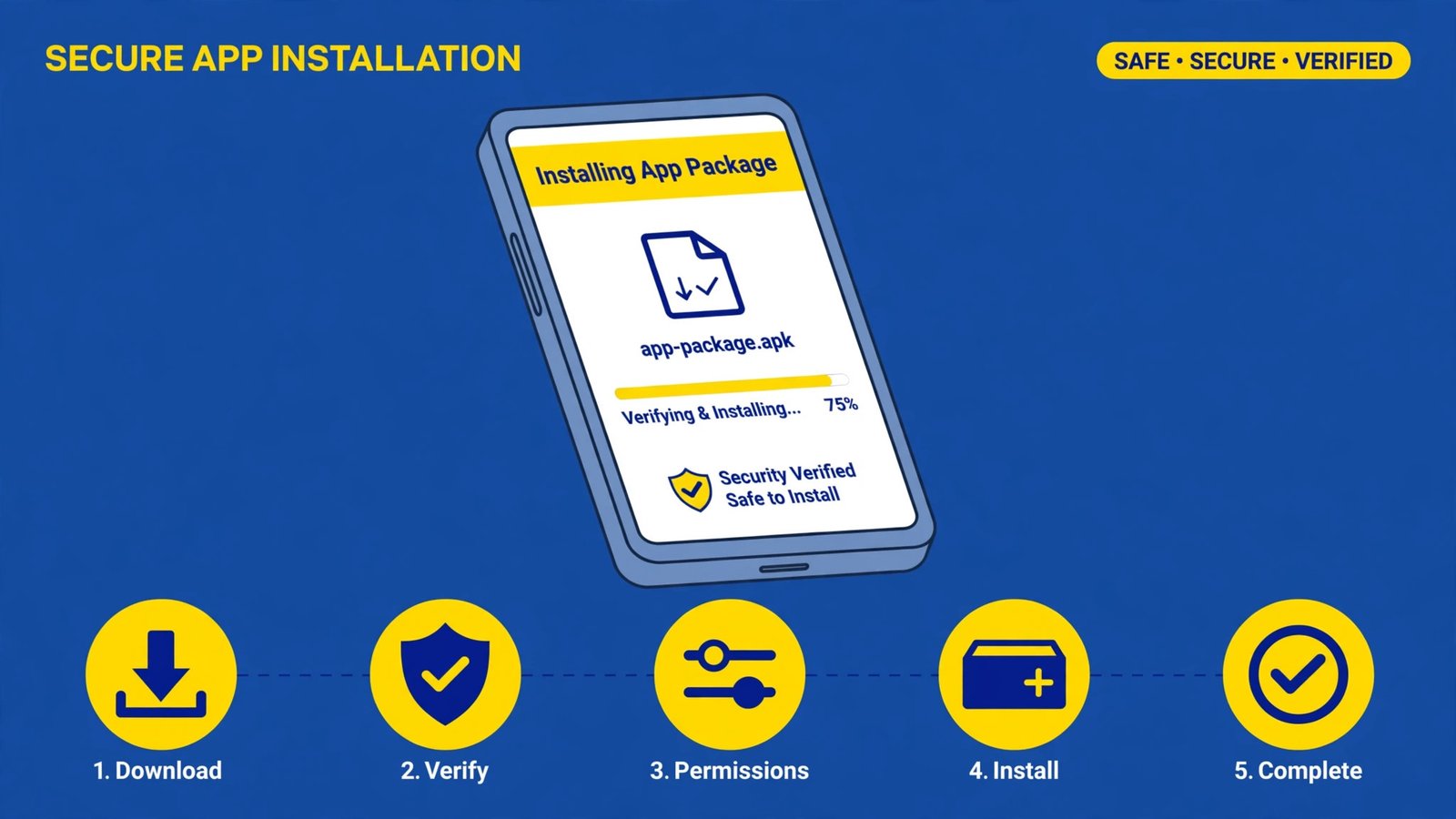
Quick Answer: How to Install APK on Android in 5 Steps
- Download the APK only from the official developer source.
- Check the file is safe (source, app details, VirusTotal scan, permissions).
- Allow “Install unknown apps” for your browser or Files app only.
- Tap the APK file and tap Install after reading permissions.
- Turn the “Install unknown apps” permission back off and let Play Protect scan.
That is the whole process. The rest of this guide explains each step properly, plus what to do when Android refuses to install.
Table of Contents
Before You Start: Is Installing an APK a Good Idea?
Ask yourself one question first: is this app available on Google Play? If yes, stop here and install it from Play. You get automatic updates, Play Protect scanning and a verified developer identity for free. Manual APK installation makes sense only when:
- The app is not listed on Play in your region
- The developer officially distributes the app from their own website
- The app is open-source and published on F-Droid
- You are reinstalling your own backup of a free app
- You need an older version because a new update broke something you rely on (get it from the official source only)
If a site claims you must install their APK because the Play version is “limited” or to unlock paid features free, that is piracy with extra steps. Close it.
Step 1: Download the APK From a Safe Source
Where you download matters more than anything else in this guide. Trusted sources, in order:
| Source | Trust level | Best for |
|---|---|---|
| Google Play | Highest — use this first | Almost every app |
| Official developer website | High | Apps not on Play, beta builds |
| F-Droid | High | Free and open-source apps |
| Your own backup | High (you made it) | Reinstalling your apps |
| Random APK sites / forwarded files | Low — avoid | Nothing worth the risk |
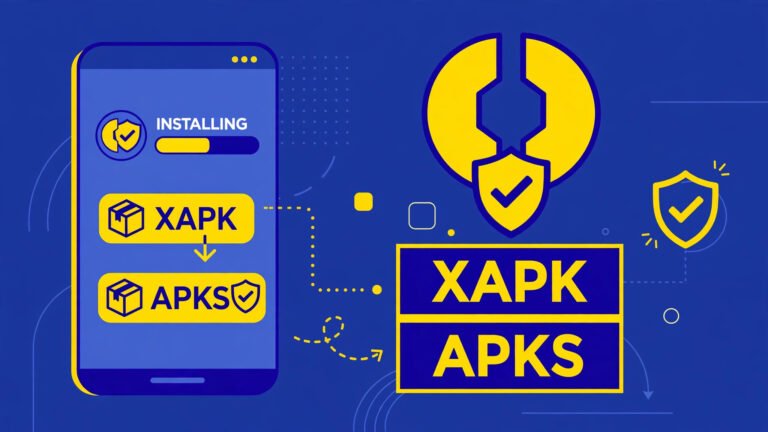
While downloading, check the file name. A normal download looks like appname.apk. If the file ends in .xapk, .apks or .apkm instead, it is a bundle format that Android cannot open directly — our APK vs XAPK vs APKS vs APKM difference guide explains what those are before you go further.
Step 2: Check the APK Is Safe Before Installing
Never skip this step, even for a file from a friend. Two minutes of checking beats weeks of cleaning a hacked phone:
- Match the details: compare app name, developer and version against the Play Store listing.
- Scan the file: upload it to VirusTotal and check the detection result.
- Watch the size: a file wildly bigger or smaller than the Play Store size is a warning sign.
We have a full step-by-step walkthrough with permission tables and red flags in our guide on how to check if an APK file is safe before installing. Follow it every single time — make it a habit, not an occasional extra.
Step 3: Allow Install Unknown Apps (For One App Only)
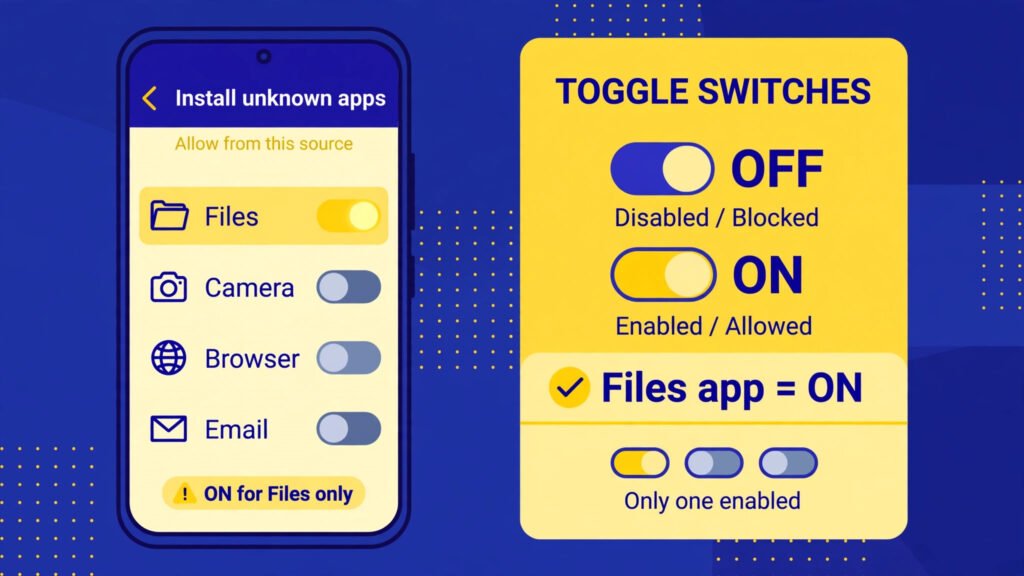
Modern Android does not have one global “unknown sources” switch anymore. Instead, each app gets its own permission to install other apps. That is safer, and here is how to use it:
- Open Settings → Apps → Special app access → Install unknown apps (the exact path varies slightly by brand).
- Find the app you will open the APK with — usually your browser (Chrome) or your Files app.
- Turn on Allow from this source for that one app only.
- Do not give this permission to messaging apps, games or random tools.
You will switch this back off in Step 5. Leaving it on for your browser means any drive-by download later could prompt an install, so treat it like leaving your front door unlocked — fine for two minutes, not as a lifestyle.
Brand note: Samsung phones with Auto Blocker turned on block sideloading completely, and Xiaomi/HyperOS shows extra countdown warnings. Those are protections, not bugs. Only
proceed if you fully trust the file.
Step 4: Install the APK
- Open your Files app and find the downloaded APK (usually in Downloads).
- Tap the file. Android shows the install screen with the app name and icon — verify it is exactly the app you expected.
- Read the permissions list. If a flashlight app wants your SMS, cancel.
- Tap Install and wait for “App installed”.
- Tap Open to test it, and check it behaves normally for a minute before trusting it with accounts.
If Android blocks the install with a Play Protect warning, read it carefully. Play Protect occasionally flags brand-new legitimate builds, but the default correct answer to a block is do not install. Never follow a website’s instruction to disable Play Protect to force an install.
Step 5: Turn Off the Permission and Scan
- Go back to Settings → Install unknown apps and turn Allow off for your browser/Files app.
- Open Play Store → profile → Play Protect → Scan, and let it check your apps.
- Delete the APK file from Downloads if you no longer need it. Installed apps keep working without the file.
Done. Your phone is back to its normal protected state, with the new app installed.
How to Update an APK-Installed App
Apps installed manually do not update through Play Store automatically (unless Play also carries them and the signature matches). To update:
- Download the newer APK from the same official source as before — the signature must match or Android will refuse.
- Install it the same way; your data stays in place when the signature matches.
- If you get a signature conflict, back up the app’s data first, because the fix usually means uninstalling the old copy.
That conflict error — “App not installed as package conflicts with an existing package” — has its own dedicated walkthrough: see our package conflicts fix guide for the 7 safe fixes.
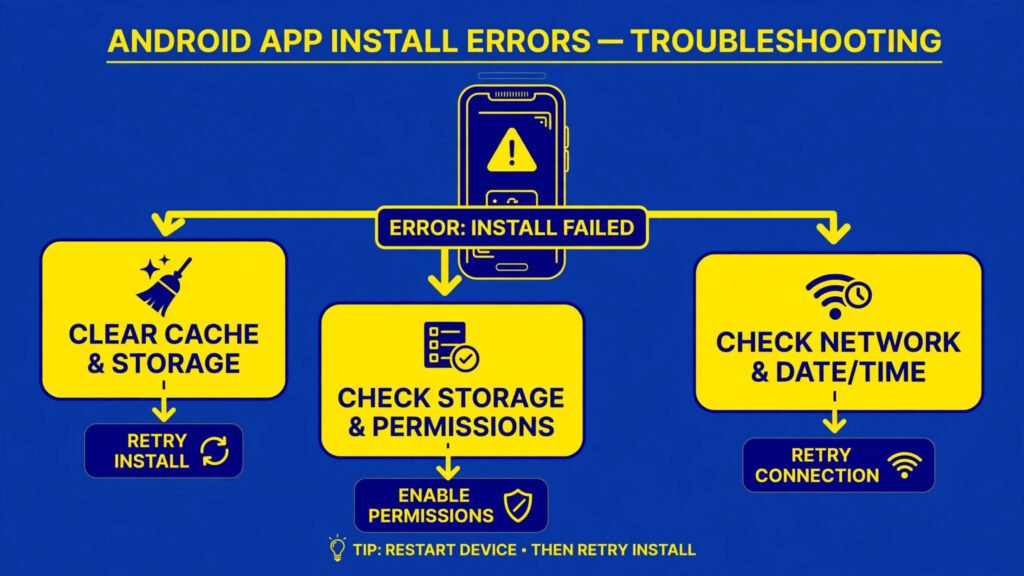
Common Install Errors and Their Fixes
| Error | Usual cause | Where to fix it |
|---|---|---|
| There was a problem parsing the package | Broken download, Android version too old, or split file | Parsing package fix guide |
| App not installed / package conflicts | Signature mismatch with installed app | Package conflicts fix guide |
| File won’t open at all | It is an XAPK/APKS/APKM bundle, not a plain APK | APK formats guide |
| Play Protect blocks install | App flagged as harmful or unknown | Stop — read the safety check guide |
The pattern to remember: Android install errors are usually your phone protecting you or a
broken file asking to be deleted — rarely are they a puzzle you must force your way past.
Safety Rules That Apply Every Time
- Google Play first, manual APK only when Play is not an option
- Official developer source or F-Droid — nothing else by default
- Scan every file on VirusTotal before installing
- Read permissions at install; cancel anything that does not match the app’s job
- Never disable Play Protect to force an install
- Turn “Install unknown apps” back off immediately after installing
- No mod, cracked or premium-unlocked files — ever
Frequently Asked Questions
Is it legal to install APK files?
Installing APK files is a normal Android feature and is legal when the app itself is legally distributed — free apps, open-source apps, and your own backups. Downloading paid apps for free or modified versions of apps is copyright infringement, and those files are also the riskiest to install.
Will installing an APK void my warranty?
Simply installing an app through Android’s normal installer does not root your phone or change its system, so it does not by itself void a typical warranty. Rooting and unlocking bootloaders are different actions with different rules — this guide does not involve them.
Why can’t I find “Install unknown apps” on my phone?
The setting lives in slightly different places by brand: try Settings → Apps → Special app access → Install unknown apps, or search “unknown” in the Settings search bar. On Samsung, also check that Auto Blocker is not silently blocking installs.
Can I install an APK without allowing unknown apps?
No — that permission is Android’s gatekeeper for anything outside Play Store. The safe pattern is to allow it for one app (your browser or Files), install, then turn it straight back off as shown in Step 5.
What should I do if an installed APK behaves strangely?
Turn on airplane mode, uninstall the app, run a Play Protect scan, and change important passwords from a clean device if the app had wide permissions. Our APK safety guide has the full recovery checklist.
Conclusion
Now you know how to install APK on Android properly: download from an official source, check the file, allow one permission briefly, install, then lock everything back down. Most install problems people hit — parsing errors, signature conflicts, strange bundle files — are covered in the linked guides in our APK Guides section, all written with the same rule: your phone’s safety comes before any app. Install smart, and Android’s flexibility stays a feature instead of becoming a risk.
APKKASH is an independent guide site and is not affiliated with Google, Samsung, Xiaomi, or any app developer mentioned. Android, Google Play and Play Protect are trademarks of Google LLC. Always download apps from official sources.

2 Comments