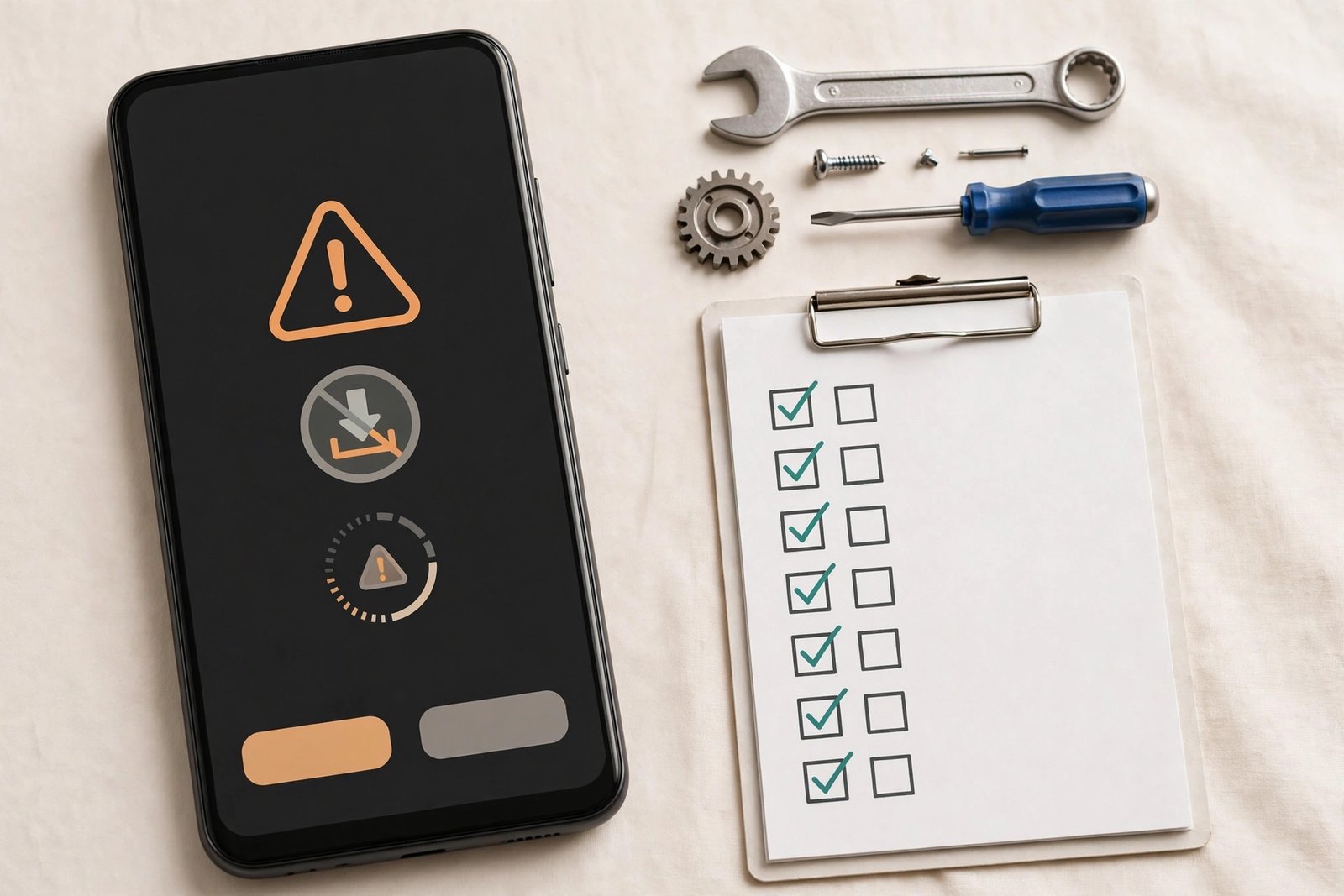
“There Was a Problem Parsing the Package”: 9 Easy Fixes for Android (2026)
Quick Answer: “There was a problem parsing the package” means Android could not read the app file you tried to install. The most common causes are a corrupt or incomplete download, an app that needs a newer Android version than your phone has, or a bundled file (XAPK/APKS) that the normal installer cannot open. Re-download the file from a trusted source, check your Android version, and use the fixes below in order – most people solve it with Fix 1, 2 or 3.
Safety first: Only install apps from Google Play or a trusted source you can verify. Never install a file just because a website promises premium features for free – that is the most common way phones get malware. This guide fixes install errors; it does not provide or link to any app downloads.
Table of Contents
What Does “There Was a Problem Parsing the Package” Mean?
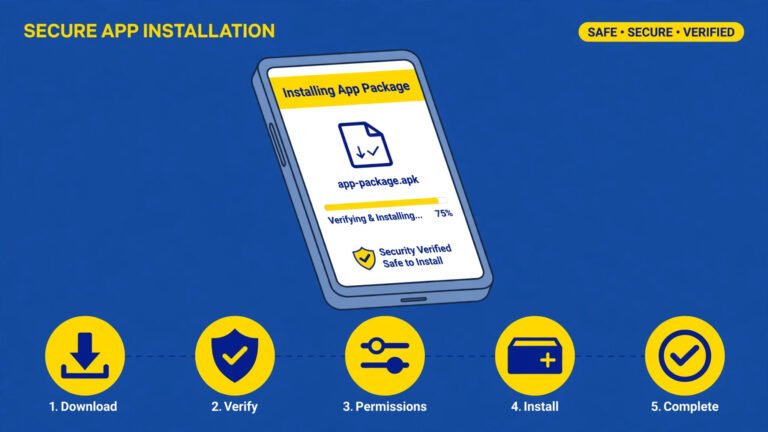
Before Android installs any app, it first “parses” the file – it reads the package to check what the app is, which Android versions it supports, and whether the file is complete and properly signed. If any of that reading fails, Android stops and shows this error instead of installing a broken or unsafe app.
In simple words: the error is Android protecting your phone. The file itself is the problem in most cases, not your phone’s hardware.
Why This Error Happens: All Causes at a Glance
| Cause | How Common | Go To Fix |
|---|---|---|
| Corrupt or incomplete download | Very common | Fix 1 |
| App needs a newer Android version | Very common | Fix 3 |
| File is XAPK/APKS, not a plain APK | Common | Fix 4 |
| “Install unknown apps” permission missing | Common | Fix 2 |
| Wrong CPU architecture (ARM vs x86) | Less common | Fix 6 |
| Not enough storage, or installer cache problem | Less common | Fix 5 and 7 |
| File renamed or extension changed (for example .zip) | Rare | Fix 8 |
| Unsigned or badly modified file | Rare – and a warning sign | Fix 9 |
Work through the fixes in order and try installing again after each one. Stop as soon as the app installs.
Fix 1: Re-Download the File from a Trusted Source
A brief Wi-Fi drop during download is enough to damage a large app file, and a damaged file always fails parsing.
- Delete the downloaded file from your Downloads folder.
- Connect to a stable Wi-Fi network.
- Download the app again – preferably from Google Play. If the app is not on Play, use only the developer’s official website or a well-known, verified source.
- Check the file size shown in your file manager and compare it with the size listed where you downloaded it. A much smaller file means the download is still incomplete.
Our recommendation: If Google Play has the app, install it from there instead. It removes this entire category of problems.
Fix 2: Allow “Install Unknown Apps” for the Right App
Since Android 8, this permission is given per app, not for the whole phone. If Chrome downloaded the file, Chrome needs the permission. If your file manager will open it, the file manager needs it.
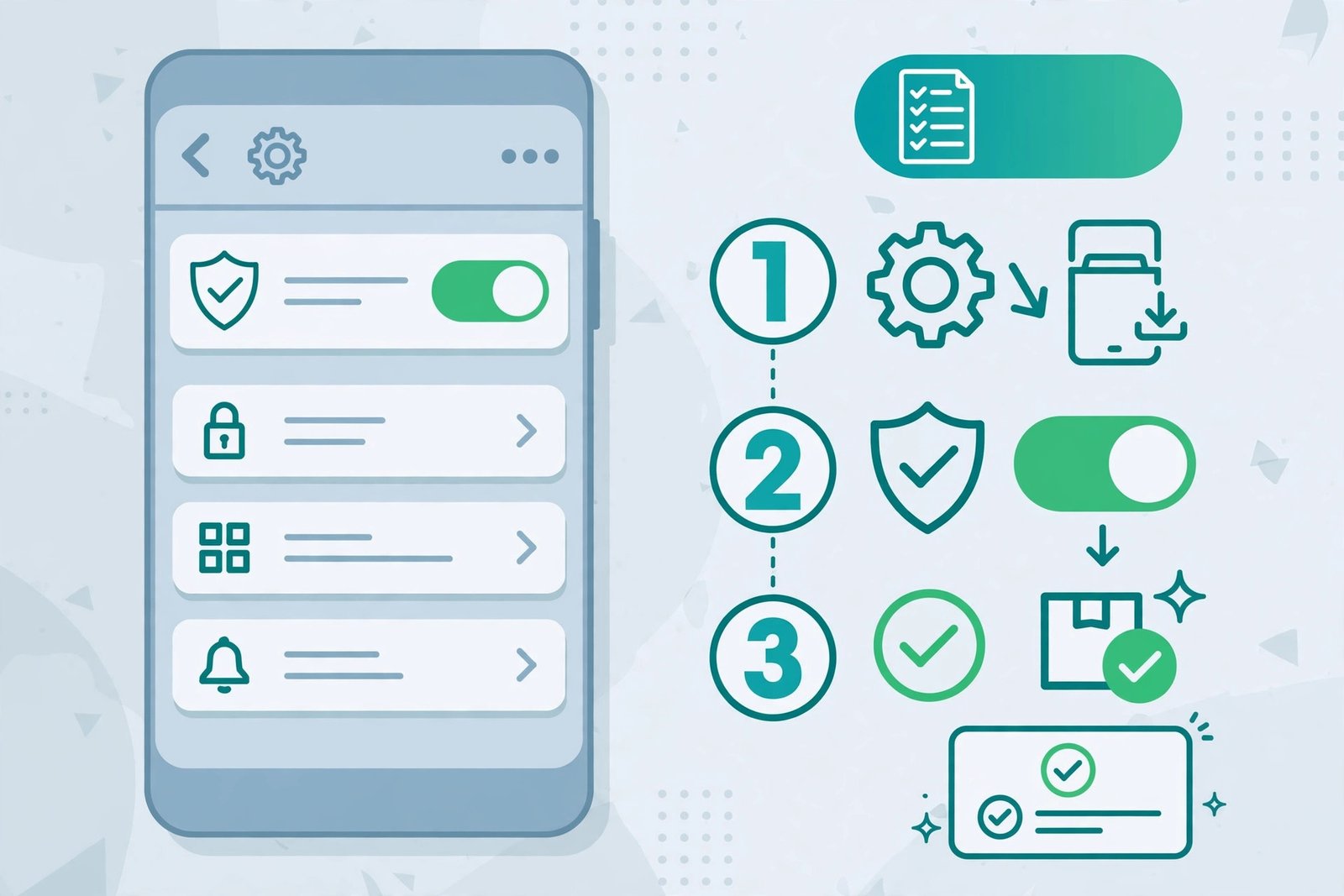
- Open Settings > Apps > Special app access > Install unknown apps.
- Select the app you downloaded with (Chrome, Samsung Internet, My Files, Files by Google, etc.).
- Turn on Allow from this source.
- Go back and try installing again.
Samsung Galaxy: Settings > Security and privacy > More security settings > Install unknown apps. Also check Auto Blocker in Security and privacy – when Auto Blocker is on, it can block sideloading completely. Only turn it off temporarily if you fully trust the file, and turn it back on afterwards.
Xiaomi / Redmi / POCO: Settings > Privacy protection > Special permissions > Install unknown apps, and wait through the security countdown if your phone shows one.
After the app is installed, turn this permission off again for safety.
Fix 3: Check Your Android Version (Minimum SDK)
Every app declares a minimum Android version. If an app needs Android 13 and your phone runs Android 11, Android refuses to parse it – and no setting can force it.
- Find your version: Settings > About phone > Android version.
- Check whether the phone has a software update waiting: Settings > Software update. Install it if available, then try again.
- If your phone cannot be updated further, look for an older version of the same app from the developer’s official source that supports your Android version. Turn off auto-update for that app in Google Play afterwards, or Play will push the incompatible new version again.
Tip: Never try to “force install” an incompatible app with random tools. The version check exists because the app uses features your phone does not have.
Fix 4: Check the File Format – APK, XAPK or APKS?
This cause is missed most often. Android’s built-in installer can open only a single plain .apk file.
- .apk – one file, tap to install. This is the normal format.
- .xapk – the app plus extra OBB data (common for large games). Needs a bundle installer.
- .apks / .apkm – a set of split files produced from an app bundle. Also needs a bundle installer.
If your file ends in .xapk, .apks or .apkm and you tap it, you get the same parsing error as a corrupt file. Use a reputable split/bundle installer (for example SAI – Split APKs Installer, from Google Play) and follow its instructions, or better, install the app from Google Play where the bundle is handled automatically.
Also check for double extensions like app.apk.zip – if the file is actually a ZIP, do not rename it blindly; go back to the source and download the correct format instead.
Fix 5: Free Up Storage Space
Android needs free space not only for the app, but also to unpack it during installation. As a rule, keep at least 1-2 GB free before installing a large app or game.
- Open Settings > Storage and check free space.
- Clear app caches, old downloads and duplicate photos/videos if space is low.
- Restart the phone once, then try installing again.
Fix 6: Download the Correct CPU Architecture Build
Some sources offer different builds for different processors. Installing an x86 build on a normal ARM phone (or the opposite) fails during parsing.
| Build Name | Which Devices |
|---|---|
| arm64-v8a | Most Android phones from 2020 onwards |
| armeabi-v7a | Older phones (before ~2020) |
| x86 / x86_64 | Some Chromebooks and tablets |
| universal | Works on all – safest choice if offered |
Install a free device-info app such as CPU-Z or DevCheck from Google Play to see your phone’s architecture, then download the matching build – or choose the “universal” build if the source offers one.
Fix 7: Clear the Package Installer Cache
Sometimes the installer itself holds damaged temporary data.
- Open Settings > Apps > See all apps, tap the menu and enable Show system if needed.
- Find Package Installer, open Storage & cache, and tap Clear cache.
- Restart the phone and try installing the file again (re-download it first if you still have the old copy – see Fix 1).
Fix 8: Check the File Name and Extension
Browsers and messaging apps sometimes rename files during transfer (for example adding “(1)” is fine, but changing .apk to .bin, .txt or .zip breaks installation).
- The file name must end in .apk for a plain APK.
- If a trusted source sent you a ZIP that contains an APK plus OBB data, that is an XAPK-style bundle – see Fix 4 instead of renaming anything.
- If you cannot tell what the file really is, delete it and download again from the official source. Renaming mystery files is how people end up installing the wrong thing.
Fix 9: If Nothing Works, Treat the File as Unsafe
If a file still refuses to parse after a clean re-download, on a supported Android version, with the right format – stop. An unsigned, re-signed or badly modified file produces exactly this behaviour, and modified files are a well-known malware route.
- Do not search for “another version” of the same file on random sites.
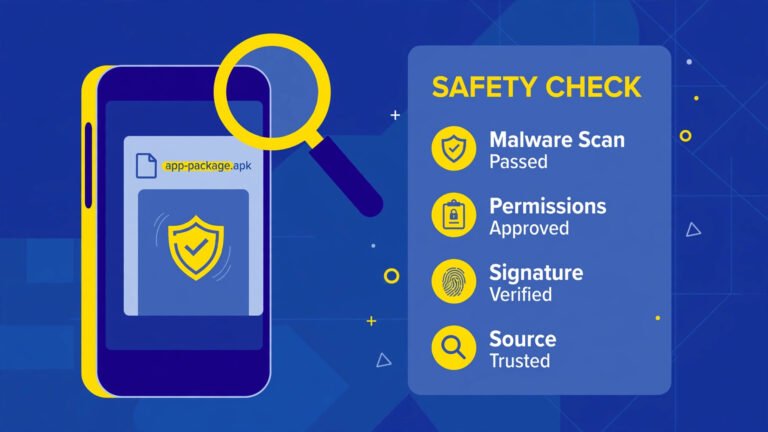
- Before installing any file from outside Google Play, you can upload it to VirusTotal in your browser to scan it with many antivirus engines at once.
- Check the permissions on the install screen. A torch or calculator app asking for your contacts, SMS or call logs is a red flag – cancel the installation.
- When in doubt, install the official app from Google Play instead.
How to Avoid This Error Next Time
- Prefer Google Play – it checks compatibility before you download.
- Download large files only on stable Wi-Fi, and do not leave the browser while downloading.
- Keep 1-2 GB of storage free on the phone.
- Keep your phone updated to the latest Android version it supports.
- Turn “Install unknown apps” back off after every manual install.
Frequently Asked Questions
Is “There was a problem parsing the package” a virus?
No. It is an installation error, and it often protects you – Android stops because the file is damaged, incompatible or in the wrong format. The file you tried could still be unsafe if it came from an unknown site, so delete it and use an official source.
Will clearing my phone data fix the parsing error?
No, and you should never factory reset for this error. Re-downloading the file, checking your Android version, and checking the file format solve the large majority of cases (Fixes 1, 3 and 4).
The app installed fine on my friend’s phone. Why not mine?
Usually a version difference: your friend’s phone runs a newer Android version, has a different processor (ARM vs x86 build), or received the normal Play version while you have a split bundle file. Compare Android versions first (Fix 3).
Can I fix this without a computer?
Yes. Every fix in this article works on the phone itself. A computer (ADB) only helps advanced users read the exact error code, and it is not required.
Is it safe to install APK files at all?
It can be, when the file comes from the developer’s official website or another verifiable source, matches your Android version, and asks for only sensible permissions. Google Play remains the safest option for most people.
Conclusion
In almost every case, “There was a problem parsing the package” comes down to three things: a damaged download (Fix 1), an Android version mismatch (Fix 3), or a bundle file the normal installer cannot open (Fix 4). Work through the list in order, keep your downloads to trusted sources, and your apps will install cleanly – without risky tools or random download sites.
For more help like this, browse our APK guides for safe, step-by-step Android fixes.

3 Comments