How to Check App Permissions in Play Store Data Safety Section (2026)
Table of Contents
Quick Answer
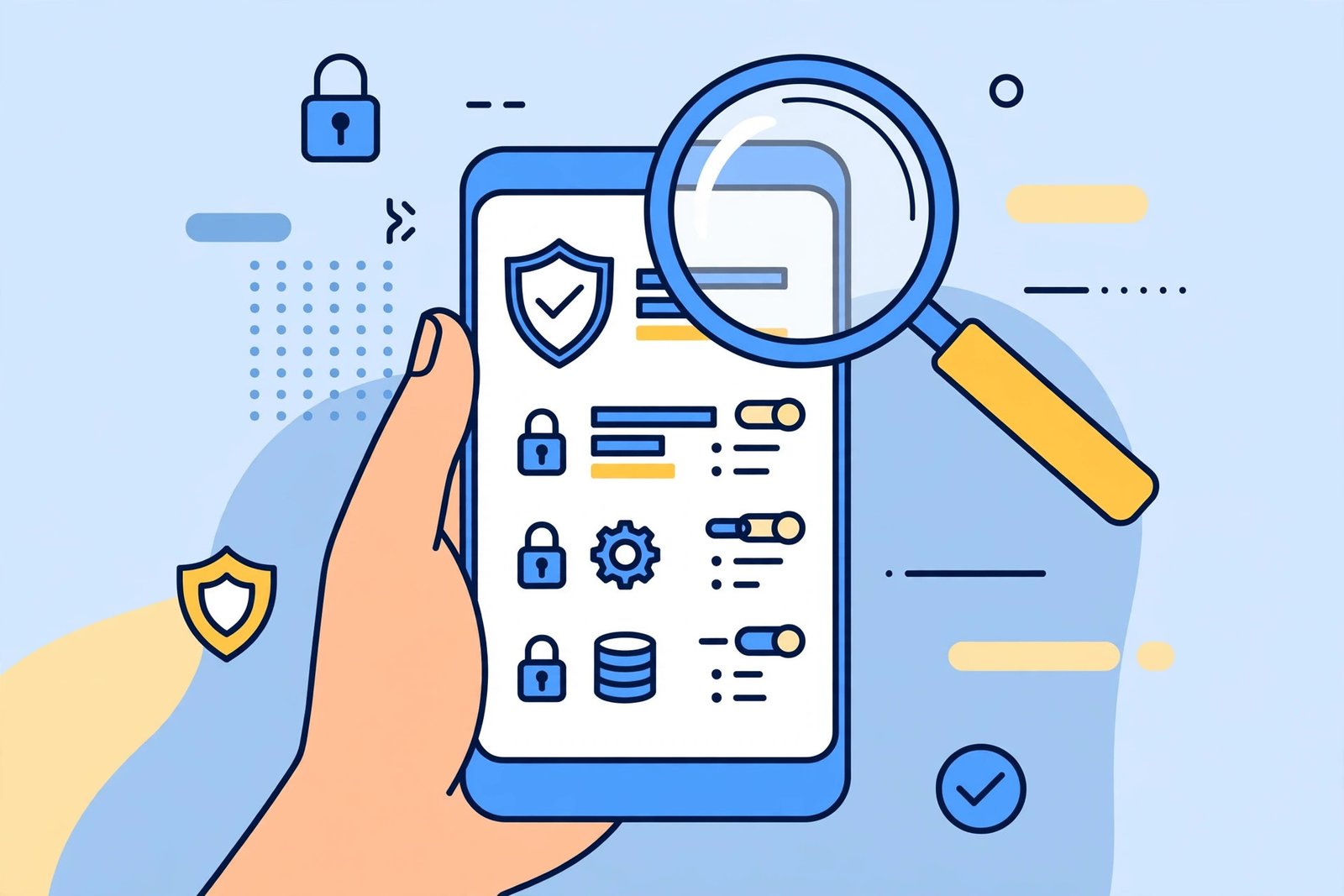
How to check app permissions in Play Store Data safety section: open the app’s Play Store page, scroll to Data safety, and tap See details. You will see what data the app collects, what it shares with third parties, whether data is encrypted in transit, and whether you can request data deletion. If a simple app collects far more than it needs — walk away.
What the Data Safety Section Shows
Every Play Store listing carries a Data safety card with four key answers:
- Data collected — the types of data the app gathers (location, contacts, photos, etc.).
- Data shared — what goes to third parties like advertisers or analytics firms.
- Data encrypted in transit — whether your data is protected while travelling to servers.
- You can request data deletion — whether the developer lets you delete your data.
Developers fill this in themselves, and Google can remove apps that lie — but treat it as a strong signal, not a guarantee.
For the official rules, see Google’s guide to the Data safety section.
How to Check App Permissions in Play Store Data Safety Section — Step by Step
- Open the app’s page in the Play Store.
- Scroll down to the Data safety section.
- Read the summary line (e.g. “Data shared with third parties”).
- Tap See details for the full breakdown by category: Location, Personal info, App activity, and more.
- Compare what it collects against what the app does.
Example: a torch app collecting precise location and contact lists is a red flag. A maps app collecting location is normal.
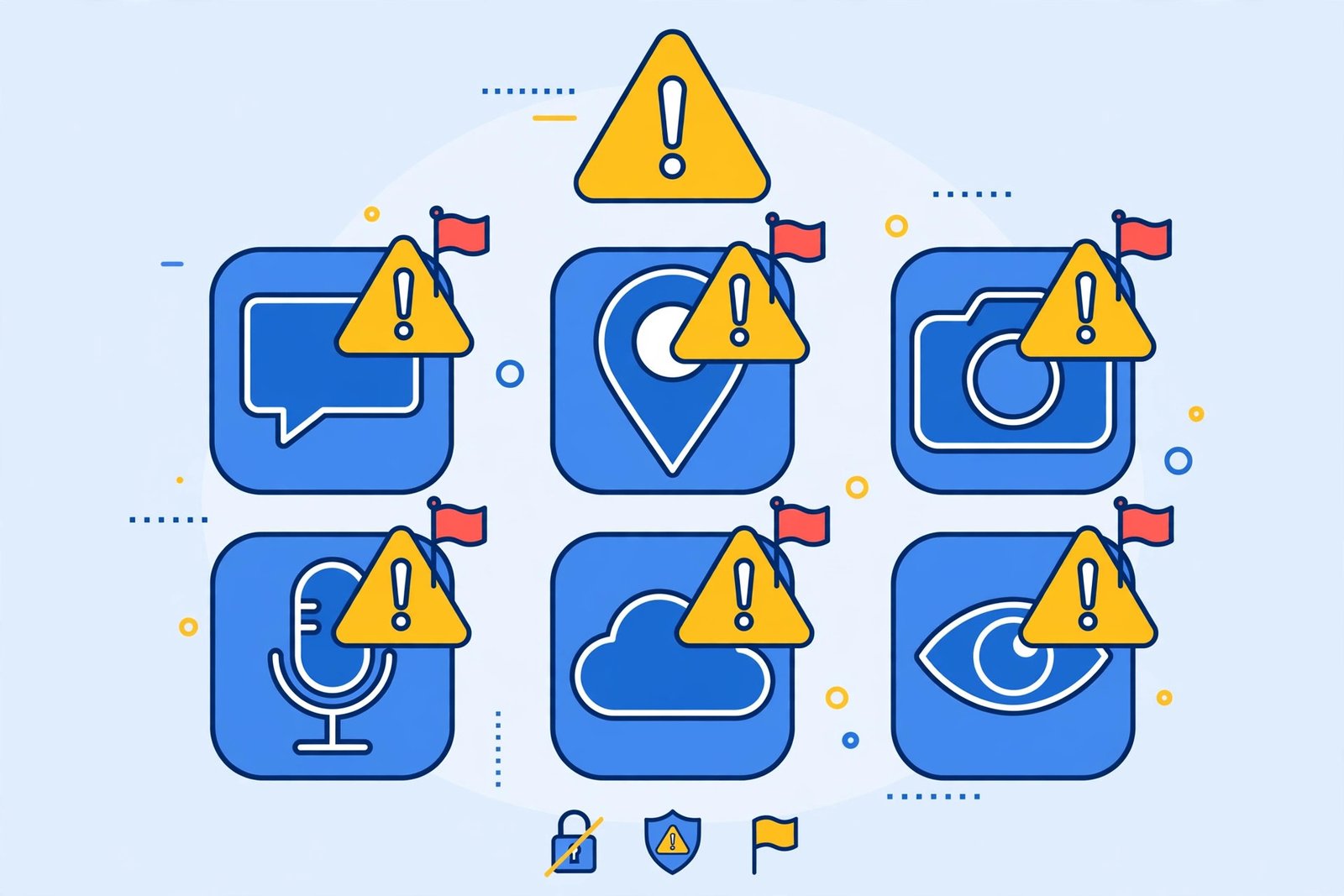
How to Check App Permissions in Play Store Data Safety Section — Red Flags
- Simple tool, huge data appetite: calculators, torches, or wallpaper apps collecting contacts, location, or call logs.
- “Data shared with third parties” on apps that have no social or ad reason to share.
- No encryption in transit: your data travels unprotected — avoid for anything sensitive.
- No deletion option: if you cannot delete your data later, think twice before handing it over.
- Vague categories: “App activity” and “Device IDs” on an app with no account system deserve suspicion.
When in doubt, look for an alternative with a cleaner Data safety card.
After Installing: Check Real Permissions Too
The Data safety section describes policy — your phone shows reality:
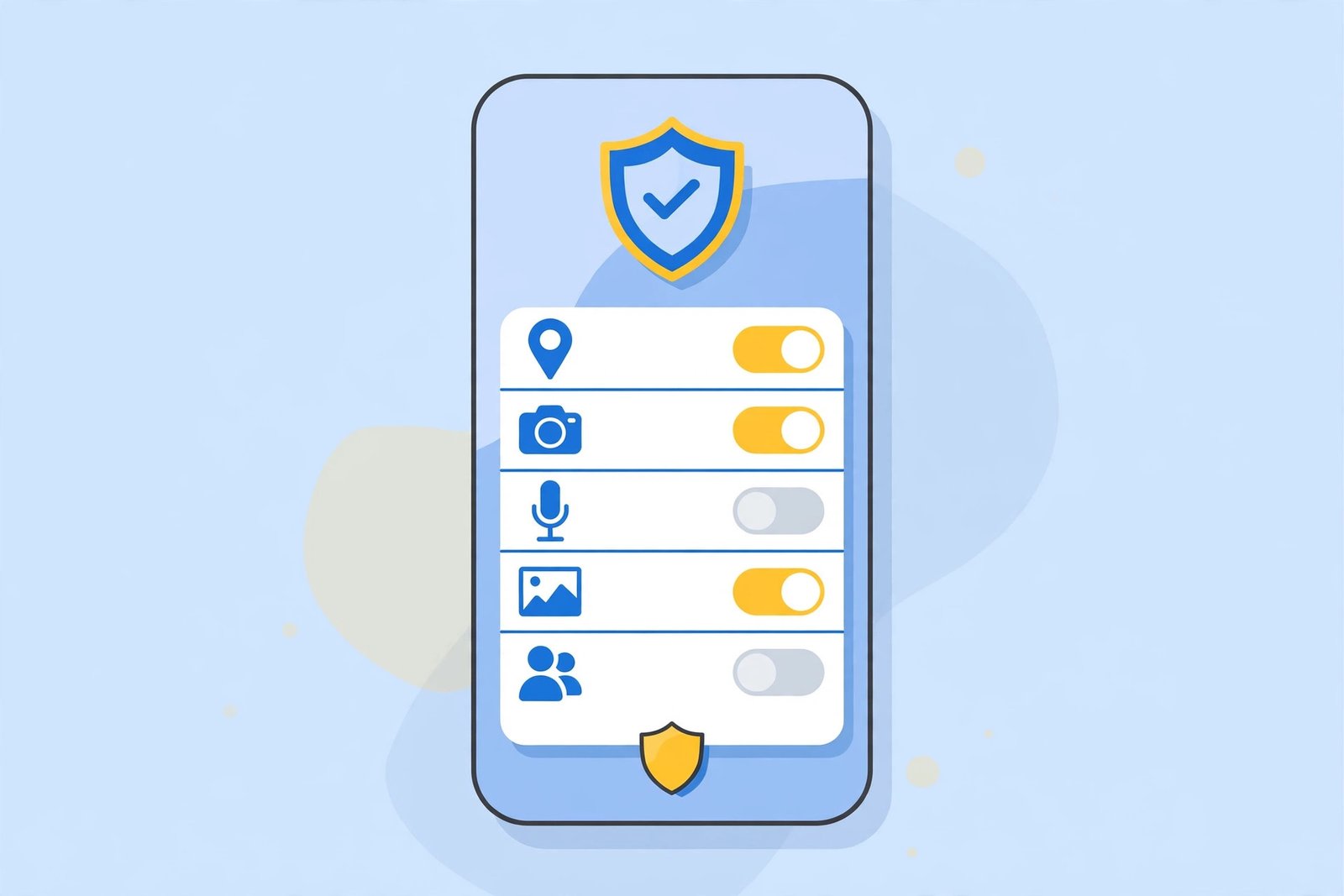
- Go to Settings → Apps → [the app] → Permissions.
- Revoke anything the app does not need (a photo editor does not need your call logs).
- On Android 12+, use approximate location instead of precise where possible.
For APKs installed outside the Play Store there is no Data safety card at all — scan them first with our APK safety checklist and VirusTotal walkthrough.
Frequently Asked Questions
Where is the Data safety section in the Play Store?
On every app’s Play Store page, scroll down past the ratings and developer info — the “Data safety” card sits there. Tap “See details” for the full breakdown.
Is the Data safety information accurate?
Developers self-report it, and Google audits and penalises false declarations. It is reliable as a first filter, but combine it with reviews and the app’s actual permission requests.
What does “Data shared with third parties” mean?
The developer sends some of your data to other companies — commonly advertisers, analytics providers, or cloud services. Check which data types are shared before deciding.
Can an app collect data not listed in Data safety?
It should not — undeclared collection violates Play policy and can get the app removed. If you suspect it, report the app from its Play Store page.
Does Data safety replace checking app permissions?
No. Data safety is the developer’s declared behaviour; Settings → Apps → Permissions shows what the app actually requests on your phone. Check both.
Do all apps have a Data safety section?
Nearly all — Google requires it for new apps and updates. Very old, unmaintained apps may lack it, which is itself a reason to be cautious.
Final Words
Knowing how to check app permissions in Play Store Data safety section takes twenty seconds and filters out the worst privacy offenders before they ever touch your phone: read what is collected, what is shared, and whether you can delete it. Make it a habit for every install — your future self will thank you.