How to Update Apps Automatically on Play Store: Full Settings Guide (2026)
Table of Contents
Quick Answer
To learn how to update apps automatically on Play Store, open the Play Store → profile icon → Settings → Network preferences → Auto-update apps, and choose Over Wi-Fi only (recommended) or Over any network. To control one app, open its Play Store page, tap the ⋮ menu → Enable auto update. Turn it off the same way to stop automatic updates.
Why Auto-Update Matters
- Security: updates patch vulnerabilities — outdated apps are the easiest target.
- Features: new tools and fixes arrive without you thinking about it.
- Compatibility: old app versions eventually stop working with new Android releases.
The only real cost is mobile data — which is why Wi-Fi-only mode exists.
Google’s official Play Store help page covers the same auto-update settings if you ever want the manufacturer’s reference.
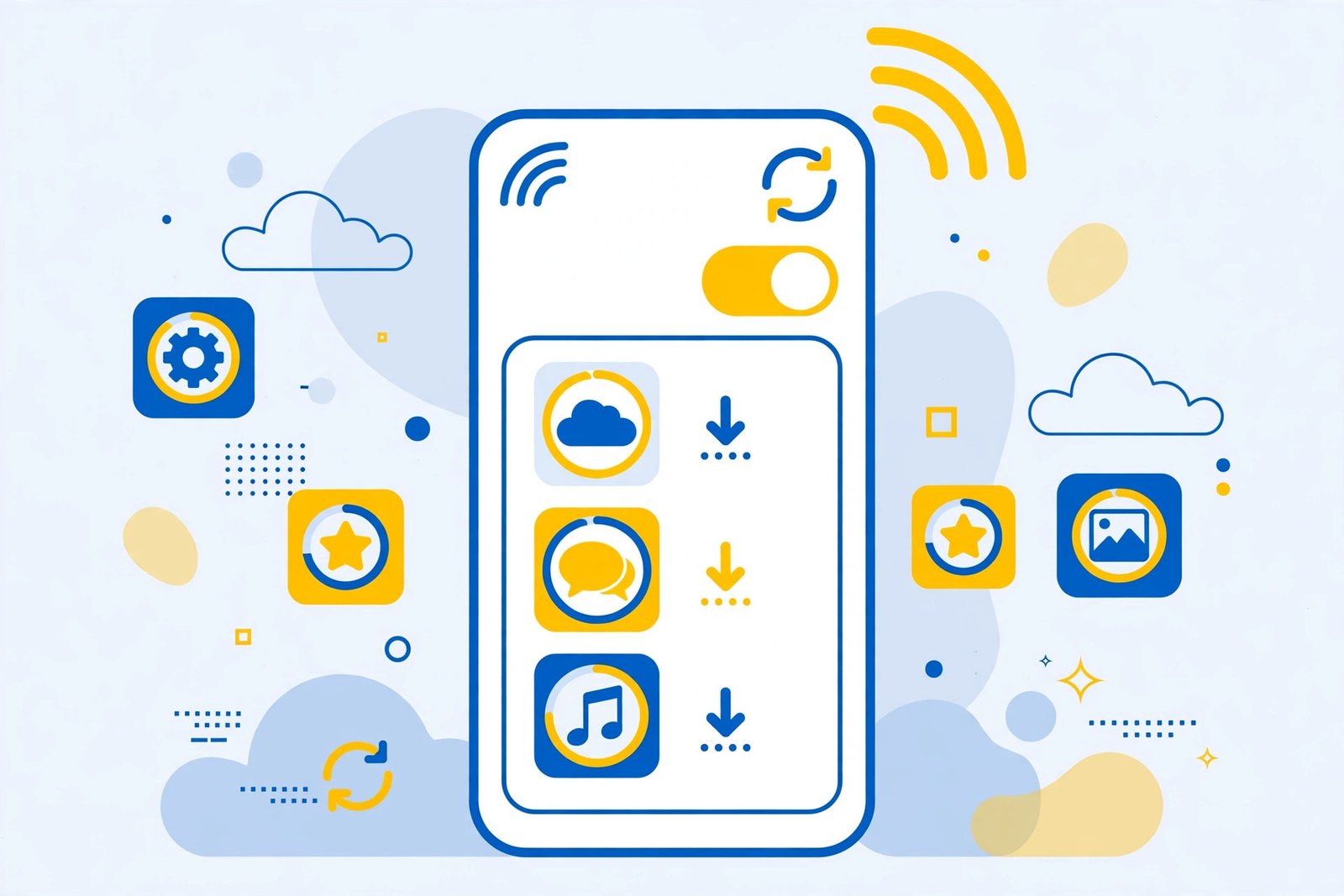
Method 1: Auto-Update All Apps
- Open the Google Play Store.
- Tap your profile icon (top right).
- Go to Settings → Network preferences → Auto-update apps.
- Choose one:
- Over Wi-Fi only — updates download only on Wi-Fi. Best for limited mobile data.
- Over any network — updates use mobile data too. Only pick this with an unlimited plan.
- Don’t auto-update apps — you update everything manually.
Recommendation: Over Wi-Fi only. Your apps stay current without touching your data pack.
Method 2: Auto-Update a Single App
Maybe you want WhatsApp always current but want to hold back a game update:
- Open the app’s Play Store page in the Play Store.
- Tap the ⋮ (three dots) menu at the top right.
- Tick Enable auto update to turn it on, or untick to turn it off.
This per-app setting overrides the global one.
How to Stop an Automatic Update
- Pause one app: Play Store → profile → Manage apps & device → Manage → tap the updating app → Cancel.
- Turn off globally: Settings → Network preferences → Auto-update apps → Don’t auto-update apps.
- Stop a bad update already installed: you cannot “undo” an update from the Play Store, but you can uninstall updates for system apps (Play Store page → ⋮ → Uninstall updates) or reinstall an older APK version — see our extract APK guide for backing up versions before updating.
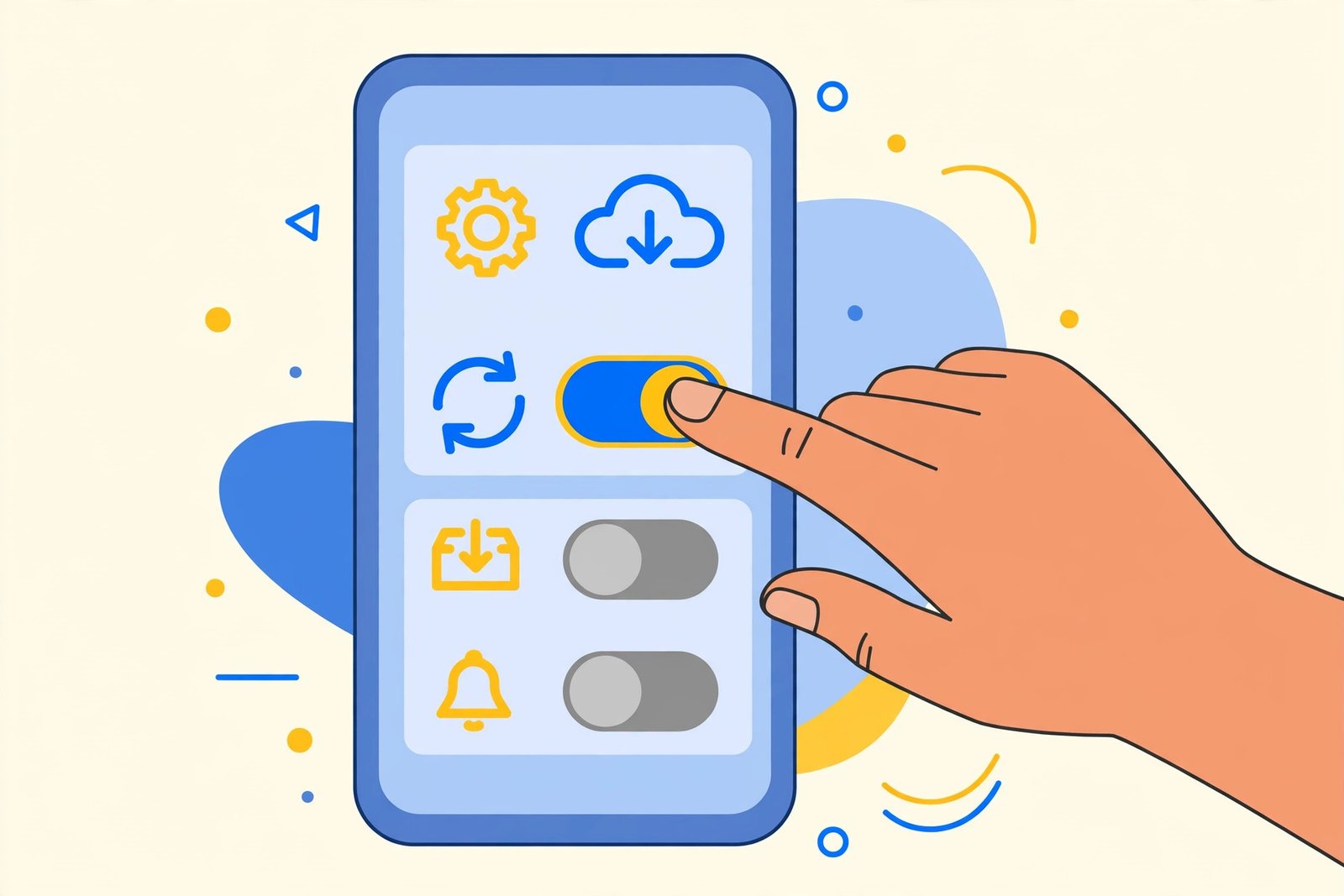
Auto-Update and Mobile Data: The Right Settings
| Situation | Best setting |
| Limited data pack | Over Wi-Fi only |
| Unlimited data | Over any network is fine |
| Roaming abroad | Turn auto-update OFF entirely |
| One app misbehaves after updates | Per-app auto-update OFF for that app |
| Phone storage almost full | Manual updates, so you choose what updates |
Also check App download preference (same Network preferences screen) — set it to Over Wi-Fi only so new installs do not eat data either.
Frequently Asked Questions
Where is auto-update in Play Store settings?
Play Store → profile icon → Settings → Network preferences → Auto-update apps.
Why are my apps not updating automatically?
Check three things: auto-update is enabled, you are on the allowed network type (Wi-Fi if set to Wi-Fi only), and the phone has enough free storage.
Can I auto-update over mobile data?
Yes — choose “Over any network”. Watch your data usage; app updates can be hundreds of MB.
How do I stop Play Store from updating one specific app?
Open the app’s Play Store page → ⋮ menu → untick “Enable auto update”.
Do auto-updates work when the phone is idle?
Yes — the Play Store updates apps in the background when the conditions (network, charging, idle) are met. You will see a notification when updates complete.
Will auto-update install an app I deleted?
No. Deleted apps are never reinstalled by auto-update.
Final Words
Updating apps automatically on Play Store is a two-minute setup that keeps your phone secure and current: Wi-Fi-only for everyone, per-app control for the exceptions. Set it once and forget it — just keep an eye on that one app you never want surprised.