APK Signature Verification: How to Check an APK’s Signature (2026)
Wondering about apk signature verification how to check?
Table of Contents
Quick Answer
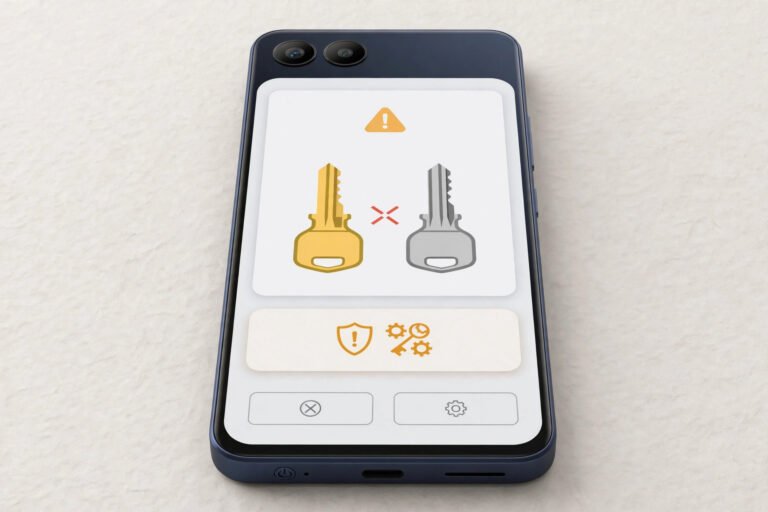
APK signature verification means checking the digital certificate an APK was signed with. To do it: install Android SDK build-tools, then run apksigner verify --verbose --print-certs your-app.apk. Compare the SHA-256 certificate fingerprint with the developer’s official release — if the fingerprints match, the APK is genuinely from that developer. If they differ, do not install it.
What an APK Signature Actually Proves
Every APK is signed with the developer’s private key. The signature proves two things:
- Authenticity — the APK really came from whoever holds that key.
- Integrity — the file has not been modified since it was signed. Even one changed byte breaks the signature.
What it does not prove: that the app is safe. A malicious developer signs their own malware perfectly well. Signature verification answers “is this really from X?” — not “is X trustworthy?” For the safety question, use our APK safety checklist and VirusTotal scan walkthrough alongside this check.
Android itself enforces signatures on updates: if you try to install an update signed with a different certificate than the installed app, Android refuses with INSTALL_FAILED_UPDATE_INCOMPATIBLE. That is the system protecting you from a signature mismatch.

Method 1: Verify with apksigner (Most Reliable)
apksigner is Google’s official tool, included in Android SDK build-tools.
Step 1: Install build-tools
Install Android SDK Platform Tools / build-tools (dofollow link) on your computer, or install Android Studio (build-tools come bundled).
Step 2: Run the verification
apksigner verify --verbose --print-certs your-app.apkStep 3: Read the output
A valid APK shows something like:
Verifies
Verified using v1 scheme (JAR signing): true
Verified using v2 scheme (APK Signature Scheme v2): true
Verified using v3 scheme (APK Signature Scheme v3): true
...
Signer #1 certificate SHA-256 digest: a1b2c3d4...
The SHA-256 digest is the fingerprint. Copy it.
Step 4: Compare fingerprints
Get the official fingerprint from the developer — many open-source projects publish it on their website or GitHub releases page. If the fingerprint from your APK matches the official one character-for-character, the APK is authentic.
No official fingerprint published? Then compare two APKs against each other: the version you already trust and the new file. Same fingerprint = same signer.
Method 2: Verify with keytool (No Build-Tools Needed)
If you have Java installed but not the Android SDK:
keytool -printcert -jarfile your-app.apkThis prints the signer’s certificate including its SHA-256 fingerprint.
Important caveat: on APKs signed only with the newer v2/v3 schemes (common for Play-delivered APKs), keytool -printcert -jarfile can print nothing at all instead of an error. An empty output does not mean “unsigned” — it means keytool could not read that scheme. When in doubt, use apksigner (Method 1), which understands all schemes.
Method 3: Check in Android Studio (Visual)
For developers or anyone who prefers a GUI:
- Open Android Studio.
- Use Build → Analyze APK (or drag the APK into the editor).
- The APK Analyzer shows the signing information, including certificate fingerprints.
This is the friendliest option if you already have Android Studio installed, but the command-line methods above are faster for one-off checks.

Red Flags: When the Signature Tells You to Walk Away
- Fingerprint differs from the official release. The file was re-signed by someone else — delete it.
- Fingerprint differs from your installed version. An “update” with a new certificate is not from the same developer. Android will block installing it over your app, and you should not install it at all.
- Certificate shows
CN=Android Debug. The APK was signed with the default debug key — legitimate developers never distribute debug-signed builds. Never trust these from third parties. - No signature at all.
apksigner verifyfails outright. Modern Android will not install unsigned APKs; if someone asks you to bypass that, it is a scam. - v1-only signing on a supposedly new app. JAR (v1) signing alone is outdated; current apps use v2/v3. Not proof of malice, but worth a second look at the source.
Signature Verification vs. Malware Scanning
These are complementary, not interchangeable:
| Check | Answers | Tool |
|---|---|---|
| Signature verification | Is this APK really from developer X? | apksigner / keytool |
| Malware scan | Does this APK contain known malware? | VirusTotal |
| Source reputation | Is the download site trustworthy? | Safe APK sites guide |
| Permission review | Does the app ask for sane permissions? | APK safety checklist |
Run all four before installing anything important — especially banking apps, wallets, or anything handling money. Then follow our safe APK install guide for the actual installation.
Frequently Asked Questions
How do I check an APK signature on my phone without a computer?
There is no reliable built-in way on the phone itself. The practical mobile workflow: download the APK, transfer it to a computer, verify with apksigner, then install. Some third-party “APK analyzer” apps show certificate info, but verify their own trustworthiness first.
What does INSTALL_FAILED_UPDATE_INCOMPATIBLE mean?
You tried to install an update signed with a different certificate than the currently installed app. Android blocks this to prevent a fake “update” from replacing a real app. Only install the update from the original developer.
Can a signature be faked?
No — forging a signature requires the developer’s private key. An attacker can re-sign an APK with their own key, but the fingerprint will differ, which is exactly what this check catches.
Do I need to verify signatures for Play Store apps?
No. The Play Store verifies signatures itself and only serves updates signed with the original certificate. This check is for APKs you download elsewhere.
What is the difference between v1, v2, and v3 signature schemes?
v1 (JAR signing) is the original scheme; v2 (APK Signature Scheme v2, Android 7+) protects the whole APK against tampering; v3 (Android 9+) adds key rotation support. Modern apps use v2/v3. apksigner verify --verbose shows which schemes verified.
The developer did not publish their fingerprint — now what?
Compare the new APK’s fingerprint against a copy you already trust (e.g. the version installed from the Play Store — extract it first with our APK extraction guide). Same fingerprint = same signer.
Final Words
APK signature verification is the one check that answers “is this really from the developer?” — run apksigner verify --verbose --print-certs, compare the SHA-256 fingerprint, and treat any mismatch as a hard stop. Pair it with a VirusTotal scan and a trusted source, and sideloading becomes a verified process instead of a leap of faith.