How to Install APK on Android 15: Unknown Apps Permission Guide (2026)
Quick Answer
This guide shows you how to install APK on Android 15: open Settings → Apps → Special app access → Install unknown apps, choose the app you will install from (Chrome, Files, etc.), and turn on Allow from this source. Then open the APK file and tap Install. Android 15 adds extra confirmation screens and stronger Play Protect scanning — approve them once and the install completes.
Table of Contents
What Changed in Android 15?
Android 15 keeps the same per-app permission model as Android 13/14, but tightens the screws:
- Per-app permission stays: you grant “Install unknown apps” to one app at a time — there is no global “unknown sources” switch anymore.
- Extra confirmation screens: Android 15 may show an additional warning dialog before the install starts, especially for APKs downloaded from a browser.
- Play Protect live scanning: Google Play Protect scans sideloaded apps more aggressively at install time and may ask to send the app for cloud analysis.
- Private Space: Android 15’s new Private Space can hide sideloaded apps behind a separate lock — useful if you install APKs others should not see.
The core flow is the same, but expect one or two more taps than on older versions.
Step-by-Step: Install APK on Android 15
Step 1: Download the APK
Download the APK from a trusted source. Never install APKs from random pop-up ads or Telegram forwards — see our safe APK sites guide first.
Step 2: Allow “Install Unknown Apps” for One App
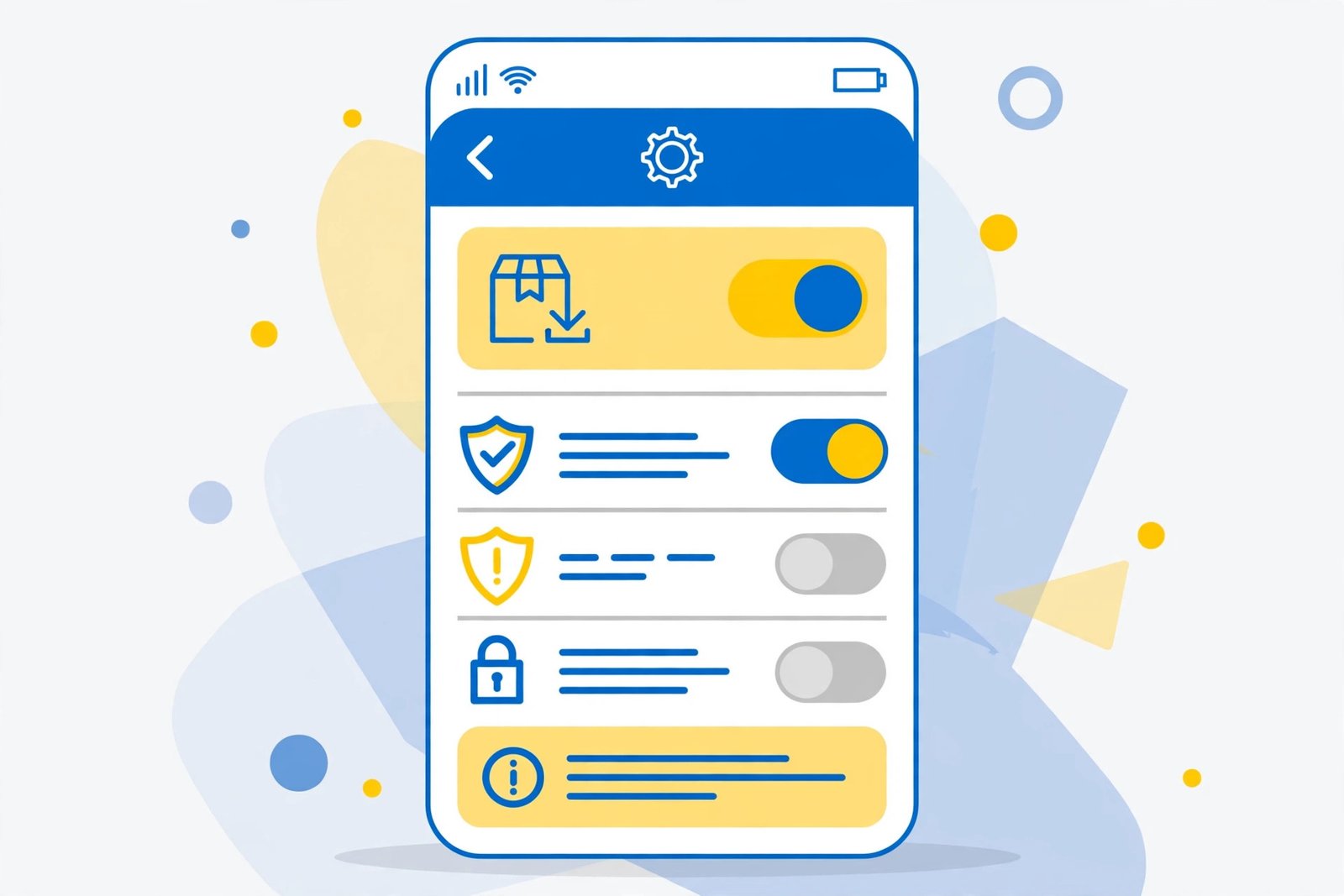
- Open Settings → Apps → Special app access → Install unknown apps.
(On Samsung phones: Settings → Apps → ⋮ menu → Special access → Install unknown apps.) - You will see a list of apps (Chrome, Files, WhatsApp, etc.).
- Tap the app you will open the APK from — usually Chrome (if downloaded) or Files by Google.
- Turn on Allow from this source.
You only need to do this once per source app.
Step 3: Open the APK and Install
- Open the APK file from your downloads or file manager.
- Android 15 shows a security confirmation — read it and tap Install / Continue.
- If Play Protect asks to scan the app, allow the scan — it takes a few seconds.
- Tap Open when done, or Done to finish silently.
Step 4: Verify It Installed
Check your app drawer for the new app. If the icon is missing, restart the launcher or check Android 15’s Private Space — the app may have been installed there if that feature is active.
Troubleshooting on Android 15
- “For your security, your phone is not allowed to install unknown apps”: you skipped Step 2 — allow the source app and try again.
- Install button does nothing: turn off any screen overlay or blue-light filter app, then retry.
- “App not installed”: the APK may be corrupted, unsigned, or built for a different CPU architecture — check our ARM64 vs Armeabi-v7a guide.
- “There was a problem parsing the package”: re-download the file; see our parsing error fixes.
- Play Protect blocks the install: if you trust the source, you can proceed past the warning — but when in doubt, do not. Scan the file first with our APK safety checklist.
Safety Rules for Sideloading on Android 15
- One source at a time: only enable “Install unknown apps” for the app you actually need — turn it off afterward.
- Stick to known sites: APKMirror, APKPure, F-Droid, or the developer’s own site.
- Scan before installing: upload the APK to VirusTotal or follow our VirusTotal scan walkthrough.
- Check permissions: after install, review Settings → Apps → the app → Permissions.
- Keep Play Protect on: it is your last line of defence against malicious APKs.
For a second opinion, upload the APK directly to VirusTotal and review its scan report before installing.
For the full background on safe sideloading, read our complete safe APK install guide.
Frequently Asked Questions
Where is “Install unknown apps” on Android 15?
Settings → Apps → Special app access → Install unknown apps. On Samsung: Settings → Apps → ⋮ → Special access → Install unknown apps.
Do I need to enable it for every app?
Only for the app you open the APK from (e.g. Chrome or Files). Each source app needs its own toggle.
Is it safe to install APKs on Android 15?
Yes, if the APK comes from a trusted source and you scan it first. Android 15’s extra confirmations and Play Protect scanning make sideloading safer than on older versions — but they cannot protect you from a deliberately malicious file you chose to install.
Why does Android 15 show more warnings than Android 13?
Google added extra confirmation steps and stronger Play Protect analysis for sideloaded apps. It is friction by design — read each screen instead of tapping through blindly.
Can I turn off “Install unknown apps” after installing?
Yes, and you should. Go back to the same setting and turn the toggle off. The installed app keeps working.
Does this work on Samsung phones running One UI on Android 15?
Yes — the path is Settings → Apps → ⋮ → Special access → Install unknown apps. Everything else is identical.
Final Words
Installing an APK on Android 15 takes about a minute: allow the source app once, open the APK, approve the security screens, and you are done. The new confirmations are there to protect you — treat them as a checklist, not an obstacle, and always pair sideloading with a quick safety scan.