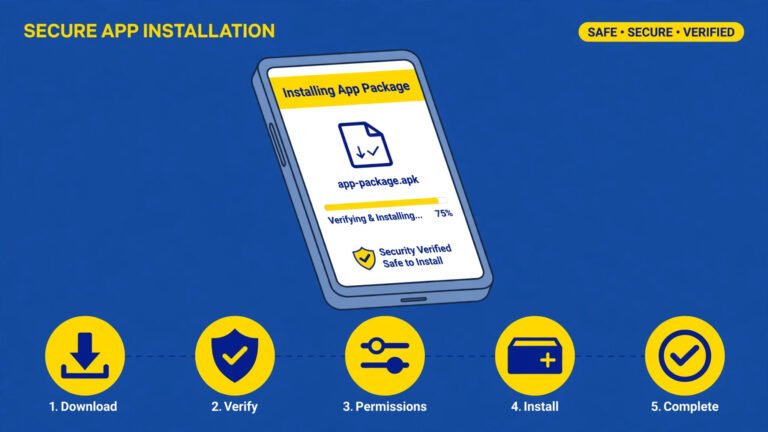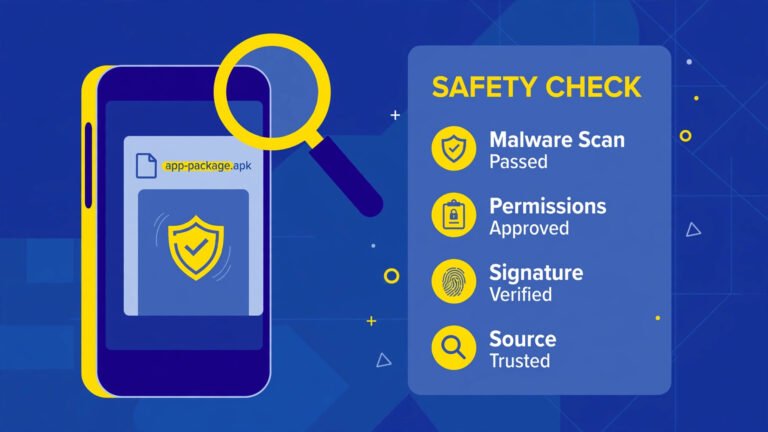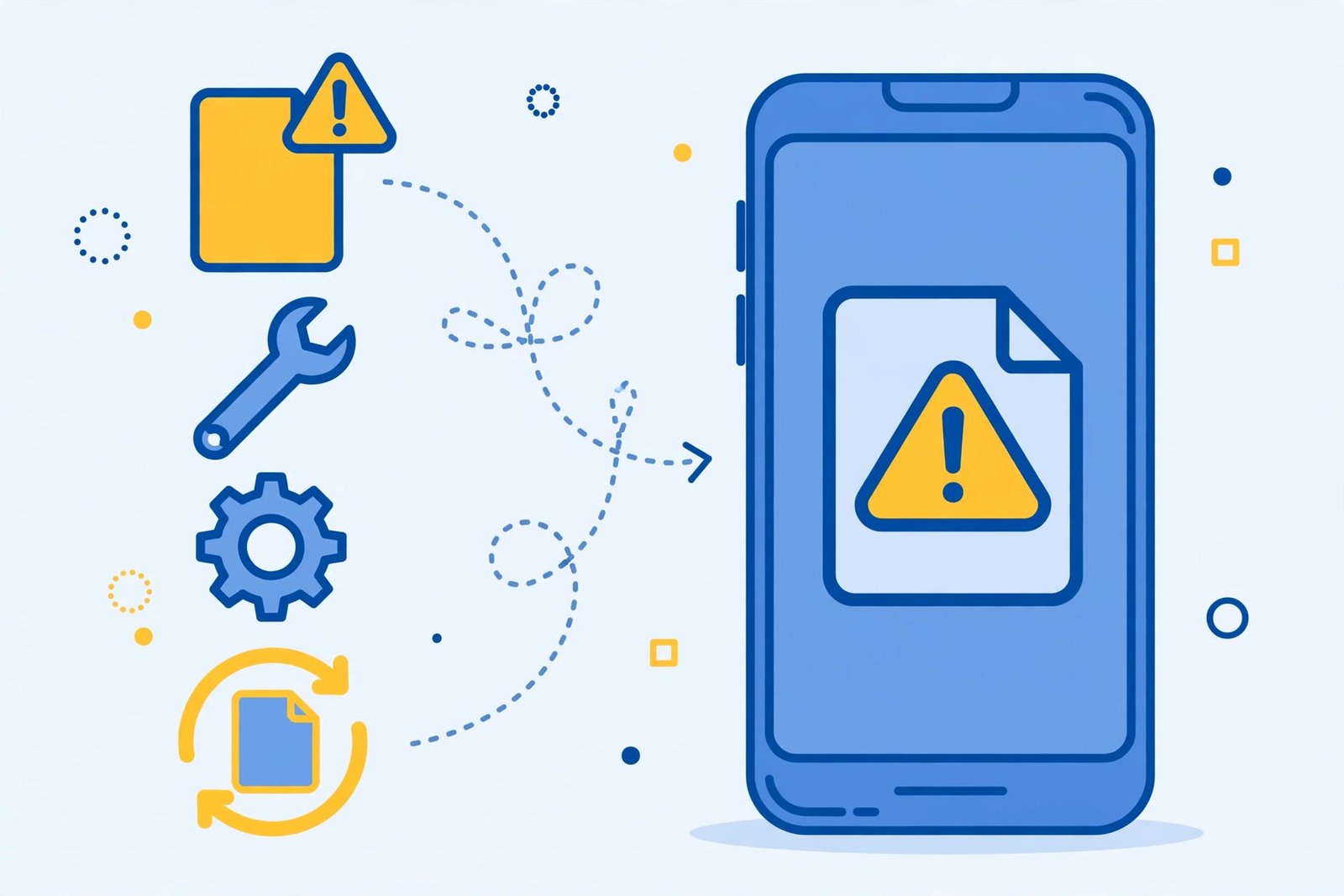
APK File Not Opening on Android? 8 Fixes That Work (2026)
Is your APK file not opening on Android? These 8 proven fixes resolve nearly every case.
Table of Contents
Quick Answer: APK File Not Opening on Android
If your APK file is not opening on Android, the most common causes are: a corrupted or incomplete download, an XAPK/APKS bundle that needs a dedicated installer app, the “install unknown apps” permission being off, or Play Protect blocking the install. Re-download the file, check its size, grant the install permission to your browser or file manager, and try again — one of these fixes it in nearly every case.
Fix 1: Re-Download — Your File Is Probably Corrupted
The #1 cause of an APK that will not open is a corrupted or incomplete download — interrupted by a dropped connection, a full download that got truncated, or a browser glitch.
- Delete the APK file completely.
- Re-download it on a stable connection (Wi-Fi preferred).
- Compare the file size with the size listed on the download page — if they do not match, the download is incomplete.
- Try a different browser if the same file fails twice.
A healthy APK is typically several MB to hundreds of MB. A file that is only a few KB is definitely broken.
Fix 2: It Might Be an XAPK or APKS File, Not an APK
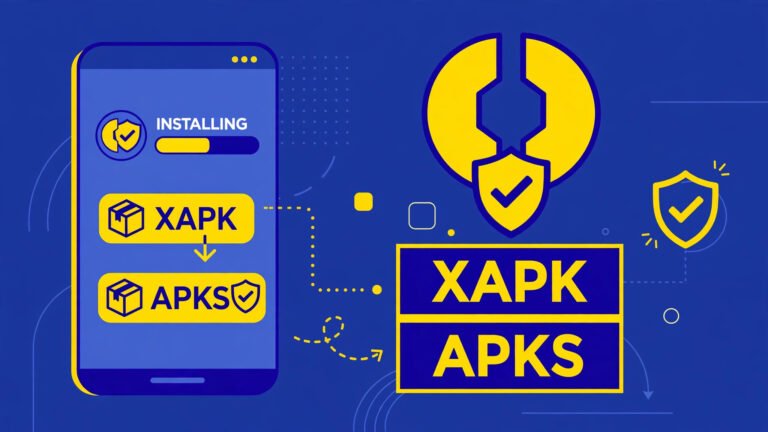
Some sites distribute apps as .xapk or .apks bundles (APK + OBB data, or split APKs). Tapping these does nothing on a stock Android — they need an installer app.
- Check the file extension. If it ends in
.xapkor.apks, it is not a plain APK. - Install a dedicated XAPK installer from the Play Store, or follow our guide: how to install XAPK/APKS files on Android.
- Alternatively, download the plain
.apkvariant of the same app instead.
This single misunderstanding accounts for a huge share of “APK not opening” complaints.
Fix 3: Turn On “Install Unknown Apps” for Your Source App
Android blocks APK installs from apps that lack the permission, often with the message “your phone currently isn’t allowed to install unknown apps from this source.”
- Go to Settings → Apps → Special app access → Install unknown apps.
- Select the app you are opening the file with (browser or file manager).
- Toggle Allow from this source on.
Full walkthrough: Install unknown apps — meaning and safety guide. On Android 15 the path is slightly different — see our Android 15 APK guide for the exact screens.
Fix 4: Check for Play Protect Blocking the Install
Google Play Protect sometimes blocks APK installs it considers risky — the install dialog just refuses or shows a warning.
- If you see a Play Protect warning, read it carefully: it may be flagging a genuinely harmful file.
- Only proceed if you verified the APK with VirusTotal and checked its signature.
- Never disable Play Protect permanently to force an install — if Play Protect objects and your own checks fail too, delete the file.
Fix 5: Free Up Storage Space
An APK cannot install if your phone is nearly full — the installer needs room for the APK plus the extracted app.
- Check Settings → Storage. If you are under ~1 GB free, clear space first.
- Delete the failed APK downloads (they pile up fast when retrying).
- Clear app caches or move photos/videos to cloud storage.
Fix 6: The File Extension May Be Wrong
Occasionally a download saves with the wrong extension (.zip, .bin, or no extension at all), and Android does not recognise it as installable.
- Use your file manager to check the real extension.
- If it is actually a ZIP containing an APK, extract it first.
- Never just rename a random file to
.apk— if it was not an APK originally, renaming changes nothing.
Fix 7: The APK May Be Incompatible with Your Phone
- Architecture mismatch: an APK built only for arm64 will not install on an old armeabi device (and vice versa). Check yours with our arm64 vs armeabi guide.
- Android version too old: some APKs require a minimum Android version. Check the app’s requirements on its download page.
- Corrupted signing: if the APK’s signature is broken, Android refuses it — this is also why you see the parsing package error, our most-read troubleshooting guide.
Fix 8: Restart Your Phone and Try Once More
It sounds trivial, but a restart clears stuck installer processes and temporary system glitches. If you have worked through fixes 1–7 and the file is verified good, restart and try the install once more.
When to Give Up on the File
Delete the APK and find another source if:
- Multiple re-downloads produce different file sizes (unstable source).
- VirusTotal flags it as malicious.
- Its signature does not match the developer’s.
- It demands permissions unrelated to its function.
Get your APKs from reviewed sources — our safe APK download sites guide lists where to look, and our safe installation walkthrough covers the full verified process.
Frequently Asked Questions
Why is my APK file not opening on Android?
The most common reasons: corrupted download, XAPK/APKS bundle needing an installer app, “install unknown apps” permission off, Play Protect block, or insufficient storage. Work through the 8 fixes above in order.
What does “can’t open file” mean when tapping an APK?
Android does not recognise the file as installable — usually a wrong extension, an XAPK bundle, or a corrupted download. Check the extension first.
How do I open an XAPK file?
Use a dedicated XAPK installer app from the Play Store — stock Android cannot open them. See our XAPK install guide.
Can I install an APK without the unknown apps permission?
No. Since Android 8, the source app (browser/file manager) must have the “install unknown apps” permission — see our meaning and safety guide.
Is it safe to keep trying a blocked APK?
If Play Protect blocks it AND your VirusTotal/signature checks fail, stop — delete the file. A blocked install is often the system saving you from malware.
Why does the APK install but the app crashes?
That is a different problem — usually an incompatible app version or corrupted app data. Try an older version of the app: how to download old app versions.
Final Words: APK File Not Opening on Android
An APK file not opening on Android is almost always one of eight things: bad download, wrong bundle type, missing permission, Play Protect, full storage, wrong extension, incompatible build, or a stuck installer. Work the list top to bottom, verify the file before forcing anything, and you will have it installed — or know for certain the file was never worth installing.