How to Stop WhatsApp Auto-Download on Android (2026)
This guide shows how to stop WhatsApp auto download on any Android phone in 2026.
Table of Contents
Quick Answer
To stop WhatsApp auto-download: open WhatsApp → Settings → Storage and data → Media auto-download, then uncheck Photos, Videos, Audio and Documents under “When using mobile data”, “When connected on Wi-Fi” and “When roaming”. All three rows will show “No media” — nothing downloads until you tap it manually. Also turn off Chats → Media visibility so downloaded media stays out of your gallery. Follow both steps and you have learned how to stop WhatsApp auto download for good.
Why Stop WhatsApp Auto Download?
- Storage: group chats can dump gigabytes of forwarded videos and memes onto your phone.
- Mobile data: on a prepaid plan, auto-downloading videos on mobile data burns through your pack.
- Privacy/clutter: every forwarded photo appearing in your gallery is annoying — and auto-downloaded files from unknown groups can occasionally carry malware, so manual control is safer.
Disabling auto-download does not block anything — once you learn how to stop WhatsApp auto download, media still arrives in chats; you just tap to download what you actually want.
Step 1: Open WhatsApp Settings
There are two entry points depending on your WhatsApp build:
- Older builds: tap the three-dot menu (top right) → Settings.
- Newer builds (late 2026): tap your profile picture (bottom-right) to open Settings.
If the three-dot menu does not show Settings, use the profile-picture entry — WhatsApp has been moving Settings there in recent updates.
Step 2: How to Stop WhatsApp Auto Download for Every Connection Type
- In Settings, tap Storage and data.
- Tap Media auto-download.
- You will see three rows:
- When using mobile data
- When connected on Wi-Fi
- When roaming
- Tap each row and uncheck every box (Photos, Audio, Videos, Documents), then tap OK.
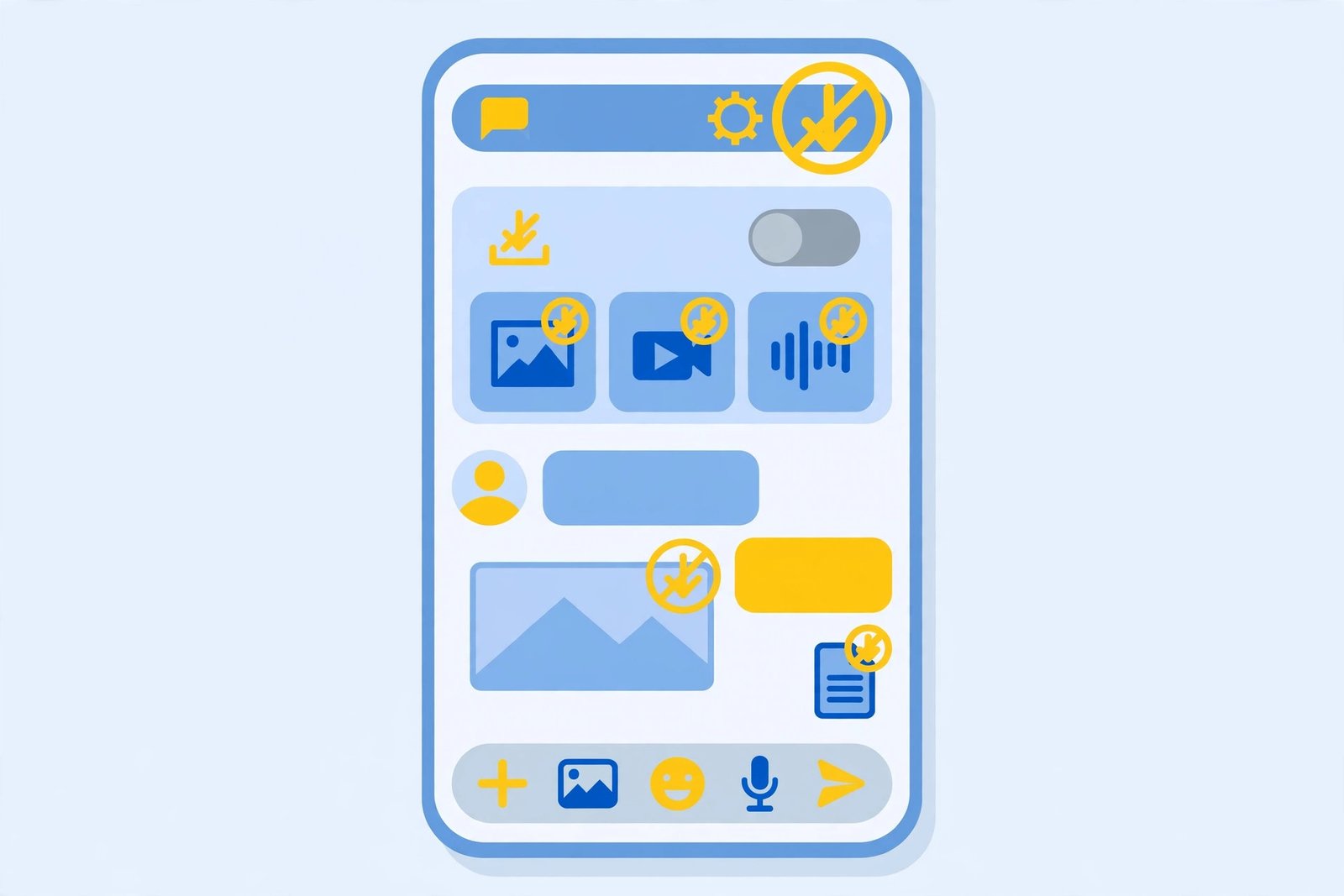
When all three rows read “No media”, auto-download is fully off. From now on, photos and videos in chats appear blurred with a download arrow — tap once to fetch the ones you want.
Middle-ground option: if you want photos on Wi-Fi but nothing on mobile data, leave Photos checked under “When connected on Wi-Fi” and uncheck everything else. Videos are the real storage hogs — most people keep those manual everywhere.
Step 3: Stop WhatsApp Media from Appearing in Your Gallery
Once you stop WhatsApp auto download, gallery visibility remains a separate setting — even with auto-download on (or for media you download manually), you can keep it out of your gallery:
- Settings → Chats → Media visibility → turn it Off.
Or per-chat (useful if you want family photos saved but not group-chat forwards):
- Open the chat → tap the contact/group name at the top.
- Tap Media visibility (or “Save to Photos”) → choose No / Never.
Step 4: Clean Up What’s Already There
Once you stop WhatsApp auto download, future clutter stops — but the old files are still on your phone:
- Settings → Storage and data → Manage storage.
- WhatsApp shows which chats use the most space, plus “Larger than 5 MB” and “Forwarded many times” sections.
- Select and delete what you do not need — freeing gigabytes in minutes is common.
Data-Saving Combos Worth Knowing
- Restrict background data for WhatsApp if it still uses data in the background: Settings → Apps → WhatsApp → Mobile data & Wi-Fi → turn off Background data. (Note: this can delay message notifications — only use it if data saving matters more than instant delivery.)
- Set Play Store updates to Wi-Fi only so app updates do not eat mobile data either — our guide on managing automatic app updates shows how.
- Check which apps use your data overall with our per-app data usage guide — WhatsApp is often near the top.
Also worth a look: our guide to checking app permissions in the Play Store Data Safety section explains what data WhatsApp declares it collects.
Finally, keep WhatsApp itself up to date — the latest builds include the newest storage controls, available from the official Play Store listing.

Frequently Asked Questions
How do I stop WhatsApp from auto-downloading on mobile data only?
Settings → Storage and data → Media auto-download → “When using mobile data” → uncheck everything. Leave Wi-Fi as-is if you want media to download automatically at home.
Will I still receive photos if auto-download is off?
Yes. Media still arrives in your chats — it just shows a download arrow instead of downloading itself. Tap to download the ones you want.
How do I stop WhatsApp photos from showing in my gallery?
Settings → Chats → Media visibility → Off. For a single chat: open the chat → tap the name → Media visibility → No.
Does turning off auto-download save storage?
Yes — learning how to stop WhatsApp auto download is the single biggest lever. Group-chat videos and forwarded memes are what fill most phones. Pair it with Manage storage cleanup for the files already downloaded.
Why is WhatsApp still using data in the background?
Message sync, status updates, and backups use background data. Restrict it via Settings → Apps → WhatsApp → Mobile data & Wi-Fi → Background data off — but expect delayed notifications.
Where do manually downloaded files go?
They save to WhatsApp’s media folders (WhatsApp/Media/…) and appear in your gallery unless Media visibility is off.
Final Words
You now know how to stop WhatsApp auto download — it takes under a minute: Storage and data → Media auto-download → set all three connection types to “No media”, then switch off Media visibility. Your storage stops filling with forwards, your data pack lasts longer, and you stay in control of what actually lands on your phone.