How to Scan APK with VirusTotal Before Installing (2026)
Quick Answer
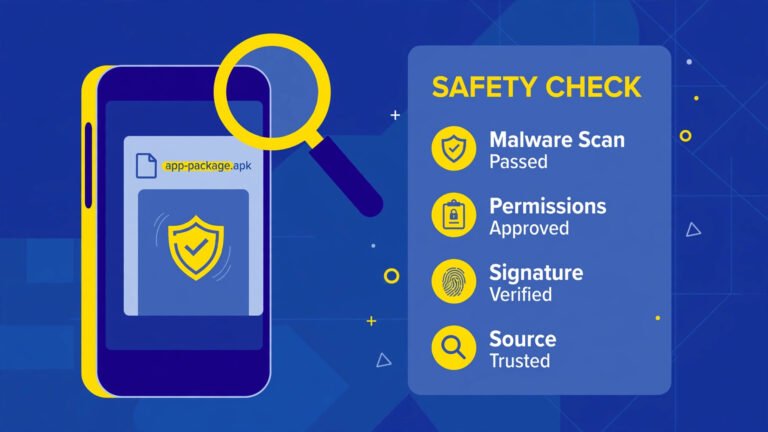
How to scan APK with VirusTotal is easy: go to virustotal.com, tap Choose file, upload the APK (up to 650 MB), and wait for the scan. VirusTotal checks the file with 60+ antivirus engines. If 0 engines flag it, the file is almost certainly clean. If several engines flag it as malware, do not install it — delete the file.
Table of Contents
What Is VirusTotal?
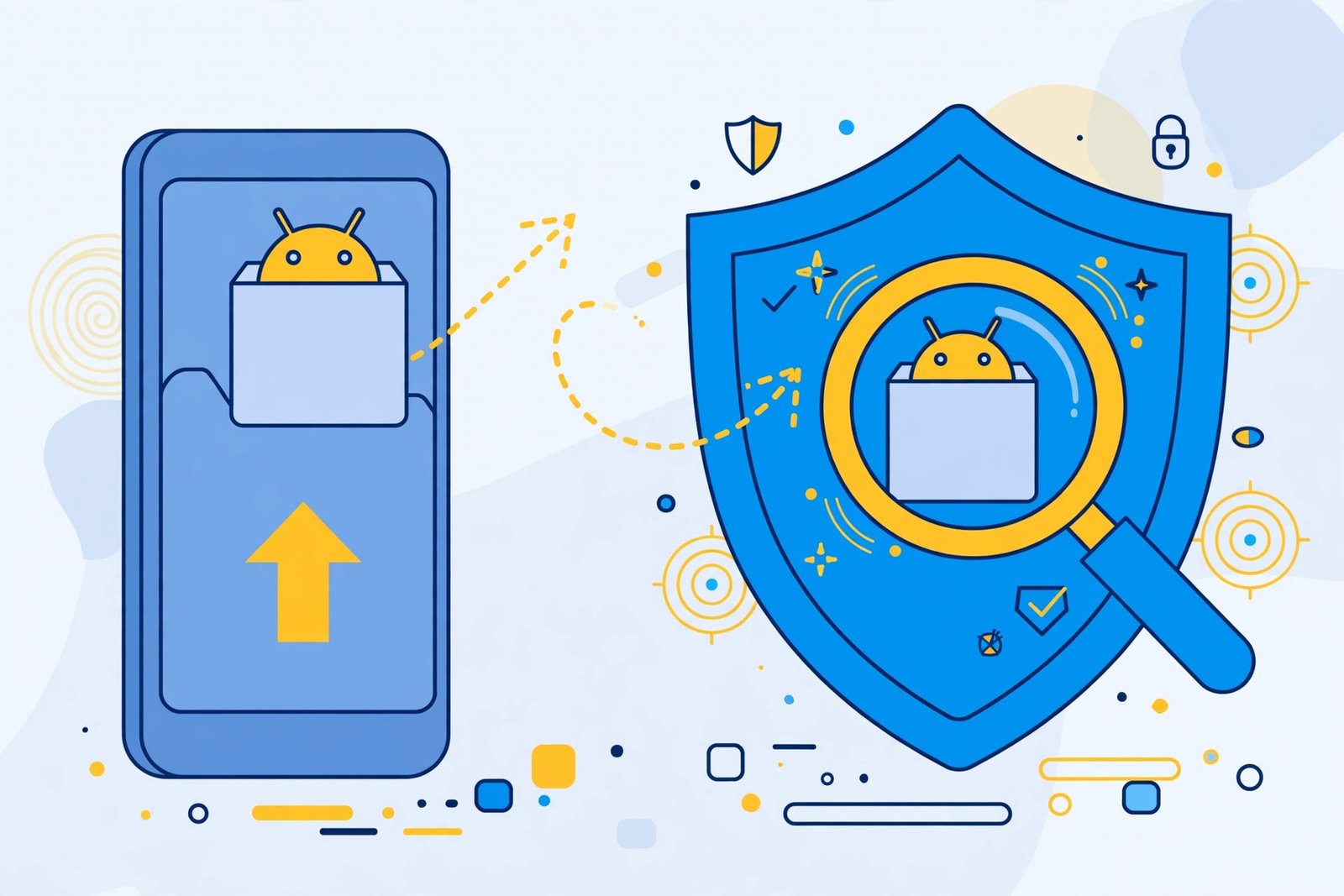
VirusTotal is a free Google-owned service that scans files and URLs with more than 60 antivirus engines at once — Kaspersky, Bitdefender, Malwarebytes, ESET, and others. Instead of trusting one scanner, you get 60+ opinions in about a minute. It is the single most reliable free check before installing any APK from outside the Play Store.
Important: uploading a file to VirusTotal shares it with the security community. Never upload APKs containing your private data — for ordinary app APKs this is not an issue.
Step-by-Step: Scan an APK with VirusTotal
Step 1: Open VirusTotal
Go to virustotal.com in your phone or computer browser. No account is needed for basic file scans.
Step 2: Upload the APK
- Tap Choose file (or drag the APK into the upload box on desktop).
- Select the APK file from your downloads.
- Wait for the upload to finish — large APKs take longer.
Step 3: Wait for the Analysis
VirusTotal first checks whether the file was scanned before. If it is a known file, results appear instantly. New files are queued and scanned by all engines — usually under a minute.
Step 4: Read the Report
The report shows a detection ratio like 0/62 or 12/64:
- 0 detections (e.g. 0/62): clean — no engine found anything malicious.
- 1–2 detections: often false positives, especially from lesser-known engines. Check which engines flagged it — if only obscure ones did, the file is probably fine.
- 3+ detections, including major engines: treat the file as dangerous. Delete it and find another source.
Tap any engine’s result to see the exact threat name it reported.
What the Labels Mean
| Label | Meaning | Action |
|---|---|---|
| Clean / Undetected | No engine flagged the file | Safe to proceed (still use common sense) |
| PUP / PUA | “Potentially unwanted program” — often adware | Avoid unless you know exactly what it is |
| Trojan / Malware / AndroidOS | Confirmed malicious code | Delete immediately, do not install |
| Suspicious | Heuristic guess, not a confirmed detection | Re-check with a fresh download from another source |

Limitations: What VirusTotal Cannot Tell You
- It cannot catch everything. Brand-new malware may score 0/62 on day one. A clean scan is strong evidence, not a guarantee.
- It does not judge the source. A clean APK from a shady site can be replaced with a malicious one tomorrow — download from trusted APK sites only.
- It does not check permissions. An APK can be “clean” yet request abusive permissions. After installing, review them — see our APK safety checklist.
Pair the scan with smart sourcing and permission review for real protection.
Make It a Habit: The 30-Second Rule
Before every sideload:
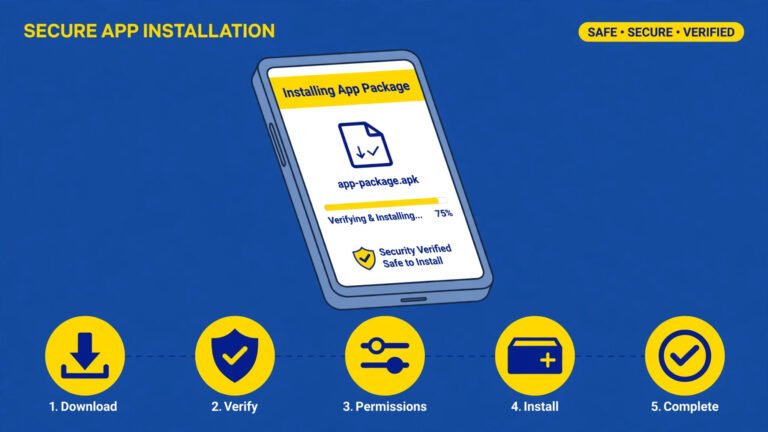
- Download the APK.
- Upload it to VirusTotal (30–60 seconds).
- 0 detections → install. Anything more → investigate or delete.
This one habit blocks the vast majority of malicious APKs. Add it to your routine alongside our safe APK install guide.
Frequently Asked Questions
Is VirusTotal free?
Yes — file and URL scans are free without an account, up to 650 MB per file.
Is it safe to upload APKs to VirusTotal?
For ordinary app APKs, yes. Do not upload files containing personal documents, private keys, or sensitive data — uploads are shared with the security community.
What does 0/62 mean on VirusTotal?
It means 0 out of 62 antivirus engines detected anything malicious — the file looks clean to every engine that scanned it.
One engine flagged my APK — should I worry?
Probably not, if it is a single obscure engine and the other 60+ say clean. Single-engine hits are usually false positives. If a major engine (Kaspersky, Bitdefender, ESET) flags it, take it seriously.
Can VirusTotal scan an app already installed on my phone?
Not directly — extract the APK first with our extract APK guide, then upload that file.
Does VirusTotal replace antivirus on my phone?
No. It is a pre-install check, not real-time protection. Keep Google Play Protect enabled on your device.
Final Words
Knowing how to scan APK with VirusTotal turns sideloading from a gamble into a checked, repeatable process: upload, read the ratio, and let 60+ engines vote before you tap Install. It takes a minute and stops most malicious APKs cold.