How to Install APK on Android TV: 4 Easy Sideload Methods (2026)
Table of Contents
Quick Answer
To install APK on Android TV, enable “Install unknown apps” in Settings, then get the APK onto your TV using one of these methods: Send Files to TV (wireless from your phone), a USB drive, the Downloader app, or ADB from a computer. Then open the APK with a file manager and tap Install. Sideloaded apps can be opened from Settings → Apps or a launcher like Sideload Launcher.
Before You Install APK on Android TV: Enable Unknown Sources
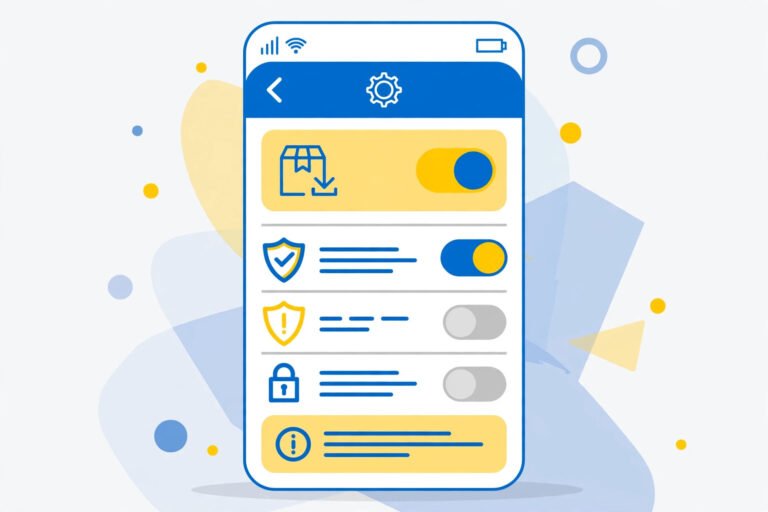
Android TV blocks manual installs by default. Allow them first:
- Go to Settings → Device Preferences → Security & Restrictions.
- Open Unknown sources (on newer versions: Install unknown apps).
- Enable it for the app you will install from (e.g. your file manager or Send Files to TV).
On older Android TV versions there is a single master toggle — turn it on.
Safety first: only sideload APKs from trusted sources.
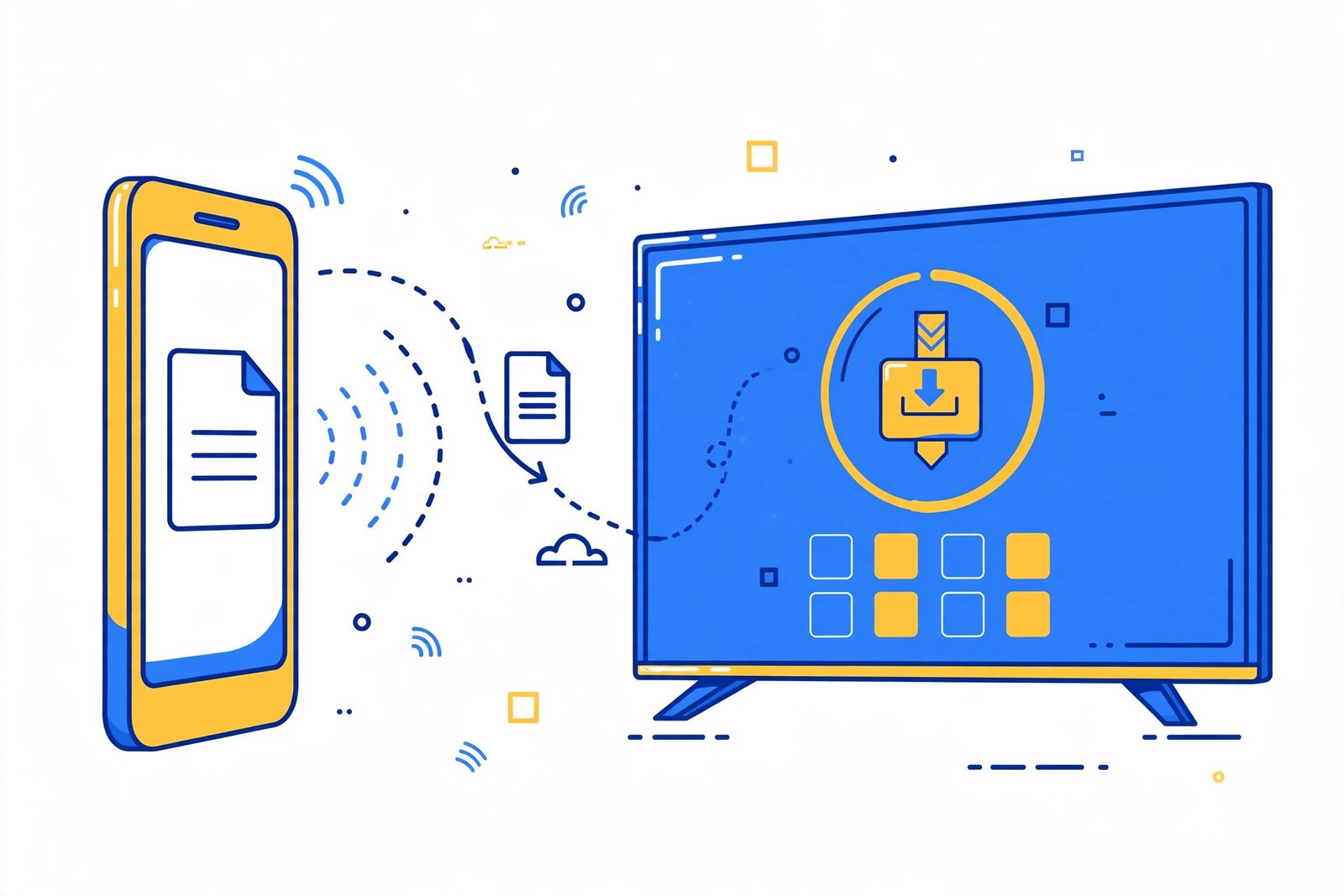
Method 1: Send Files to TV (Easiest, Wireless)
This is the simplest way to install APK on Android TV — no cables needed.
- Install Send Files to TV from the Play Store on both your phone and your Android TV.
- Download the APK on your phone from a safe source.
- Open the app on your TV and tap Receive.
- Open the app on your phone and tap Send → select the APK → choose your TV.
- Once transferred, open the APK on the TV and tap Install.
If it is your first sideload, the TV will ask for the unknown-sources permission — grant it and tap the APK again.
Method 2: USB Drive
- Copy the APK file onto a USB pen drive from your computer or phone.
- Plug the drive into your Android TV’s USB port.
- Open a file manager on the TV (install one like File Commander from the Play Store if needed).
- Navigate to the USB drive, tap the APK, and choose Install.
Method 3: Downloader App
- Install Downloader from the Play Store on your Android TV.
- Open it and type the direct download URL of the APK.
- After the download finishes, Downloader prompts you to install — tap Install.
This is a handy way to install APK on Android TV when you know the exact file link and do not want to involve your phone.
Method 4: ADB from a Computer (Advanced)
For tech-comfortable users, Android Debug Bridge (ADB) installs APKs straight from a PC:
- On the TV: Settings → Device Preferences → About → click Build seven times to unlock Developer Options.
- In Developer Options, enable USB debugging.
- Connect the TV to your computer (USB cable, or wireless ADB on the same network).
- On the computer, run:
adb install app-name.apk - Wait for the “Success” message.
Where to Find Your Sideloaded Apps
Sideloaded apps often do not appear on the Android TV home screen. Find them via:
- Settings → Apps → See all apps, or
- Install Sideload Launcher (or TV App Repo) from the Play Store — it lists every installed app including sideloaded ones.
Troubleshooting
| Problem | Fix |
|---|---|
| “App not installed” | Wrong CPU architecture — most TVs are arm64-v8a; see our ARM64 vs Armeabi-v7a guide |
| APK won’t open from file manager | Enable unknown sources for that file manager app |
| App installs but won’t open | The app may not support TV/remote input — try a TV-optimised version |
| “Parse error” | Corrupted download — re-download from a trusted source |
Frequently Asked Questions About How to Install APK on Android TV
Is sideloading APKs on Android TV legal?
Yes — sideloading itself is legal. Just make sure the app you install is legitimate and from a trustworthy source.
Can I install any phone APK on Android TV?
Technically yes, but phone apps are designed for touchscreens. Many work poorly with a TV remote. Prefer apps with TV or “leanback” versions.
Do sideloaded apps update automatically?
No — the Play Store will not update sideloaded apps. You must manually download and install newer versions.
Will sideloading void my TV’s warranty?
No. Enabling unknown sources and installing APKs does not void warranties or require rooting.
Which Android TV boxes support sideloading?
All of them — Mi Box, Mi TV Stick, Nokia, OnePlus TV, TCL, and Nvidia Shield all allow it once unknown sources are enabled.
Can I sideload on Fire TV Stick?
Yes, Fire TV Stick (Fire OS is Android-based) supports sideloading through the Downloader app or ADB, with “Apps from Unknown Sources” enabled in settings.
Final Words
Learning how to install APK on Android TV opens up apps the Play Store does not offer on TV — as long as you stick to safe sources and TV-friendly apps. Start with Send Files to TV for the easiest experience, and keep our safe APK install guide handy for the fundamentals.