Install Failed No Matching ABIs? 7 Easy Fixes for Android (2026)
Table of Contents
Quick Answer
The “Install Failed No Matching ABIs” error means the APK file you are trying to install does not contain native code for your phone’s processor (CPU architecture). The fastest fix is to download the correct variant of the app for your device — most modern phones need the arm64-v8a version, while older budget phones may need armeabi-v7a. If you cannot find the right variant, install the universal APK instead, which contains all architectures in one file.
What Does “Install Failed No Matching ABIs” Mean?
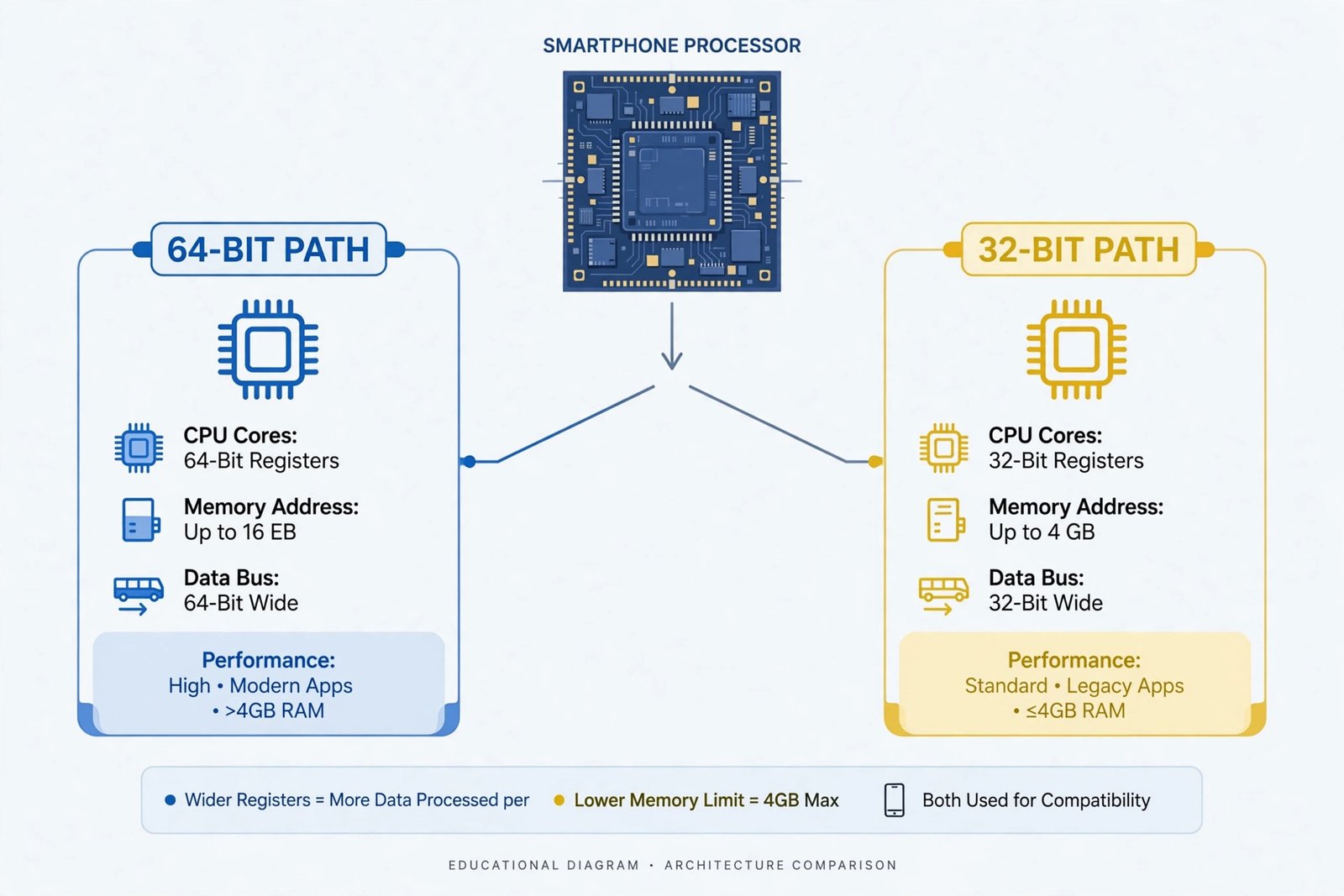
ABI stands for Application Binary Interface — it describes the instruction set your phone’s processor understands. When an app contains native code (written in C/C++, common in games and performance-heavy apps), that code is compiled separately for each CPU architecture. If the APK includes none of the architectures your device supports, Android refuses to install it and shows the “Install Failed No Matching ABIs” message (via adb install; in the normal installer you usually just see “App not installed”).
Think of it like trying to play a Blu-ray disc in a DVD player — the content is fine, but the format does not match the hardware.
The Main Android ABIs
| ABI | What It Is | Which Devices |
|---|---|---|
| arm64-v8a | 64-bit ARM | Almost all phones from 2017 onward (most common today) |
| armeabi-v7a | 32-bit ARM | Older/cheap phones, some Android Go devices |
| x86_64 | 64-bit Intel | Chromebooks, some emulators |
| x86 | 32-bit Intel | Very old emulators, rare today |
Most APKs on download sites are split into separate files per ABI to keep downloads small — and grabbing the wrong one is the #1 cause of this error. (Google’s official Android ABI documentation lists every ABI the platform supports.)
How to Check Your Phone’s ABI (30 Seconds)
Before downloading anything, find out which ABI your device needs:
- Install a free system-info app from the Google Play Store (for example, “Droid Info” or “CPU-Z”).
- Open it and look for Instruction Set, CPU Architecture, or Supported ABIs.
- Note the first entry — that is your primary ABI. On most phones it will say arm64-v8a.
No computer or root required. Once you know your ABI, every fix below becomes straightforward.

Fix 1: Download the Correct ABI Variant
This solves the problem in most cases. Sites that host APK files (like APKMirror) list separate downloads labelled arm64-v8a, armeabi-v7a, or universal. Pick the one matching your phone:
- Phone from 2017 or later → arm64-v8a
- Old/ultra-budget phone or Android Go → armeabi-v7a
- Chromebook → x86_64
Delete the wrong file first so you do not mix them up, then install the correct variant.
Fix 2: Install the Universal APK Instead
If you are unsure about your ABI or the site does not label variants clearly, grab the universal (sometimes called “all architectures”) APK. It bundles every ABI into one larger file, so it installs on any device. The only downside is a bigger download — worth it for the certainty.
Fix 3: Re-download the File (It May Be Corrupt or Mislabeled)
Sometimes the “Install Failed No Matching ABIs” error appears because the download was interrupted or the file was mislabeled by the uploader. Re-download from the official source:
- Prefer the developer’s official site or GitHub releases page.
- Check the file size matches what the site lists — a much smaller file means an incomplete download.
- After downloading, check that the APK is safe before installing, as you should with any sideloaded file.
Fix 4: Use a Split-APK Installer for APKS/XAPK Bundles
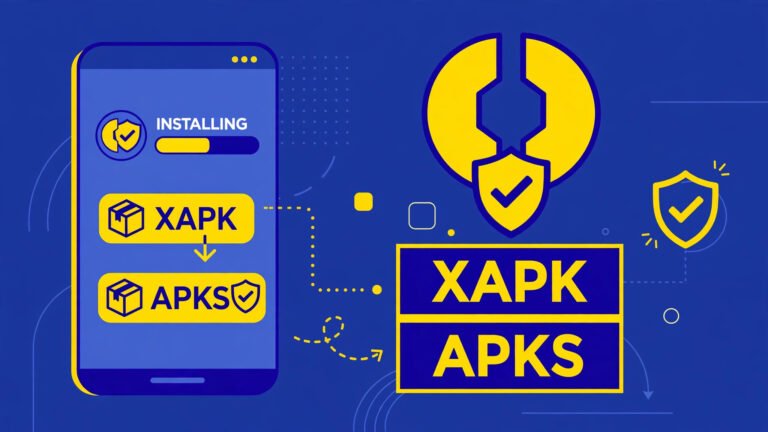
Modern apps are often distributed as .apks or .xapks bundles containing one APK per ABI. If you hand such a bundle to Android’s stock installer, it fails — sometimes with an ABI-related error. Use an installer app like SAI (Split APKs Installer) or the official APKMirror Installer, which picks the right split for your device automatically. See our full guide: How to Install XAPK and APKS Files on Android Safely.
Fix 5: 64-bit Phone, 32-bit App? Look for an Updated Version
Since around 2019, Google requires Play Store apps to include 64-bit (arm64-v8a) native code, but APKs floating around on the web can be ancient 32-bit-only builds. Modern flagships run a 64-bit-only system with no 32-bit runtime at all — a 32-bit-only APK will fail with no matching ABIs and can never work there. The fix: find a newer version of the app that ships arm64-v8a libraries, or check whether the app is on the Play Store (the store always serves the right variant automatically).
Fix 6: Emulator or Chromebook Users — Match the Virtual Device
This error is extremely common on Android emulators and Chromebooks:
- An arm64-v8a-only APK will not install on an x86_64 emulator without ARM translation, and vice versa.
- In Android Studio, create a virtual device whose system image matches the APK’s ABI, or download the x86_64 variant of the app.
- On Chromebooks, enable the Play Store version of the app instead of sideloading a phone ARM build when possible.
Fix 7: Confirm the Real Error with ADB (Advanced)
The stock Android installer hides details behind “App not installed”. If you have a computer, installing via ADB reveals the exact failure:
- Enable USB debugging in Developer options and connect your phone.
- Run
adb install app.apkfrom your computer’s terminal. - If the output says
INSTALL_FAILED_NO_MATCHING_ABIS, you have confirmed the diagnosis — apply Fixes 1–2 above.
You can also compare architectures directly: adb shell getprop ro.product.cpu.abilist shows your device’s supported ABIs. This step is optional — most users will never need it.
Quick Diagnosis Table
| Symptom | Likely Cause | Fix |
|---|---|---|
| “App not installed” right after tapping APK | Wrong ABI variant downloaded | Fix 1 or 2 |
| Error only on new flagship phone | 32-bit-only APK on 64-bit-only device | Fix 5 |
| Error in emulator/Chromebook | Emulator ABI ≠ APK ABI | Fix 6 |
| Happens with every APK you try | Corrupt downloads or wrong source | Fix 3 |
.apks / .xapks file won’t install | Bundle given to stock installer | Fix 4 |
Frequently Asked Questions
What is the difference between arm64-v8a and armeabi-v7a?
arm64-v8a is the 64-bit ARM instruction set used by nearly all modern phones; armeabi-v7a is the older 32-bit ARM set. A 64-bit phone can usually run 32-bit apps, but a 64-bit-only system cannot run a 32-bit-only APK — that mismatch triggers the “Install Failed No Matching ABIs” error.
Can I convert an APK from one ABI to another?
No — not practically. Native libraries are compiled code; you cannot convert them without the app’s source code. You must download the variant built for your ABI or the universal APK.
Does this error mean the APK has a virus?
No. It is a compatibility error, not a security warning. That said, you should still verify any APK is safe before installing — especially files downloaded outside the Play Store.
Why does the Play Store never show the “Install Failed No Matching ABIs” error?
Because the Play Store (and its app bundles) automatically delivers only the APK splits matching your device’s ABI. You only meet this error when sideloading manually.
I have the right ABI but it still fails — what now?
Then the cause is something else: a corrupt download, a signature conflict with an installed copy, or insufficient storage. Work through our broader guides: App Not Installed as Package Conflicts With an Existing Package and There Was a Problem Parsing the Package.
Final Words
The “Install Failed No Matching ABIs” error looks scary, but it is simply Android telling you the APK speaks a different CPU language than your phone. Check your device’s ABI once, download the matching arm64-v8a (or armeabi-v7a for older phones) variant — or the universal APK — and the install will go through. For the full safe-sideloading workflow, start with our pillar guide: How to Install APK on Android Safely.