“App Not Installed as Package Conflicts With an Existing Package”: 7 Fixes (2026)
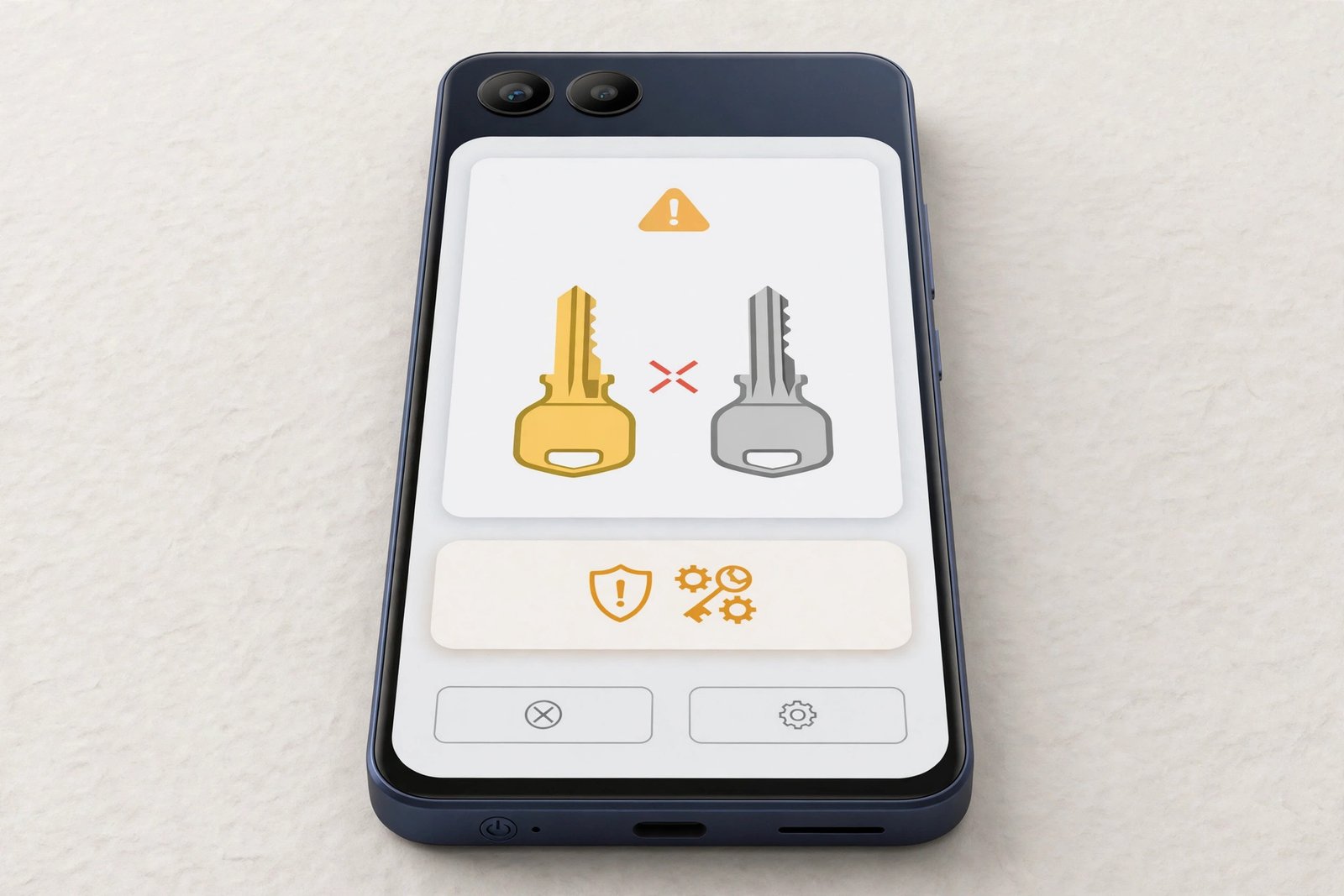
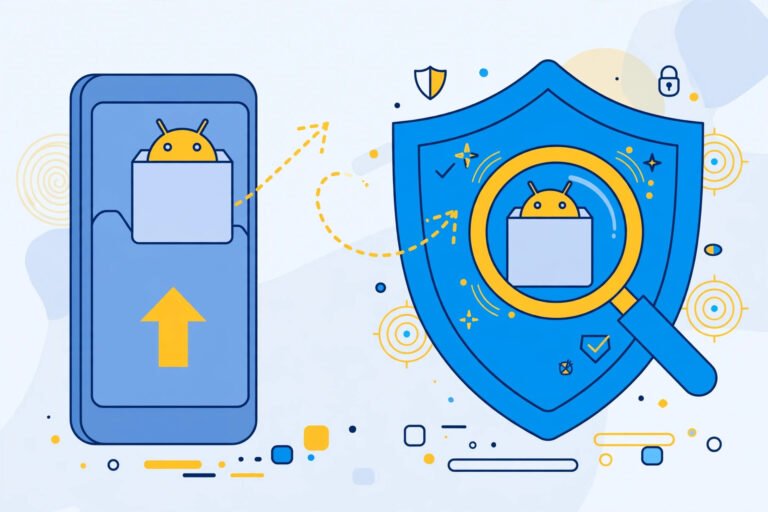
Quick Answer: “App not installed as package conflicts with an existing package” means the app you are trying to install has the same package name as an app already on your phone, but it is signed with a different certificate. Android blocks this on purpose to protect your data. The safe fix is to install the official version from Google Play, or – only if you trust the source completely – back up your data, uninstall the existing app, and install the new one fresh. Never try to force the install with random tools.
Safety note: A signature conflict often appears when a file has been re-signed or modified by someone other than the original developer. That is a common way malware is hidden. This guide explains the error and the safe fixes; it does not link to any app downloads, modified apps, or installation tools.
Table of Contents
What Does This App Not Installed Error Actually Mean?
Every Android app has two things that must match when you update it:
- Package name – the app’s unique ID, for example com.example.app. Two different apps cannot use the same ID at the same time.
- Signing certificate – the developer’s digital signature. An update is accepted only if it is signed with the exact same certificate as the version already installed.
When the package name matches but the signature does not, Android refuses the install and shows this error. It is not a bug – it is Android checking “is this update really from the same developer?” and getting the answer “no”.
Why You Are Seeing This Error: Main Causes
| Cause | Common Example | Safe Fix |
|---|---|---|
| File re-signed by a third party | A modified copy of an app downloaded from a random site | Fix 1 – use the official app |
| Play version vs developer’s direct version | Beta or direct-download build installed over the Play Store version (or the reverse) | Fix 2 or Fix 4 |
| App already exists in another profile | Work profile, Secure Folder, Dual Apps / App Twin copy | Fix 3 |
| Disabled or hidden system/pre-installed version | A built-in app that was disabled, not uninstalled | Fix 5 |
| Older version still installed (downgrade attempt) | Installing an older version number over a newer one | Fix 6 |
| Data left behind after a failed uninstall | App removed for the main user but not for all users | Fix 7 |
Fix 1: Install the Official Version from Google Play (Recommended)
This solves the problem in most cases because the Play version carries the developer’s original signature – the same one your installed app expects.
- Delete the file you downloaded from the other source.
- Open Google Play, search for the app by name, and check that the developer name matches the real developer.
- Update or install from Play. If your existing app came from Play, the update will install normally with your data intact.
Our recommendation: If an app is on Google Play, there is almost never a good reason to install a copy of it from elsewhere. A different signature is Android telling you the copy did not come from the developer.
Fix 2: Back Up, Uninstall the Old App, Then Install Fresh
Use this only when the new version comes from a source you can verify – for example the developer’s own official website – and you understand you will lose the app’s local data if you do not back it up first.
- Back up first. Use the app’s own backup/cloud option if it has one. Note that chat and local-only data are usually lost on uninstall if not backed up.
- Uninstall the existing app: Settings > Apps > [app name] > Uninstall.
- Restart the phone once (this clears leftover installer state).
- Install the new version from the verified source, and check its requested permissions carefully before confirming.
Important: If the two versions are “official Play app” vs “unknown copy”, do not do this fix to keep the unknown copy. Use Fix 1 instead.
Fix 3: Check Other Profiles – Work Profile, Secure Folder and Dual Apps
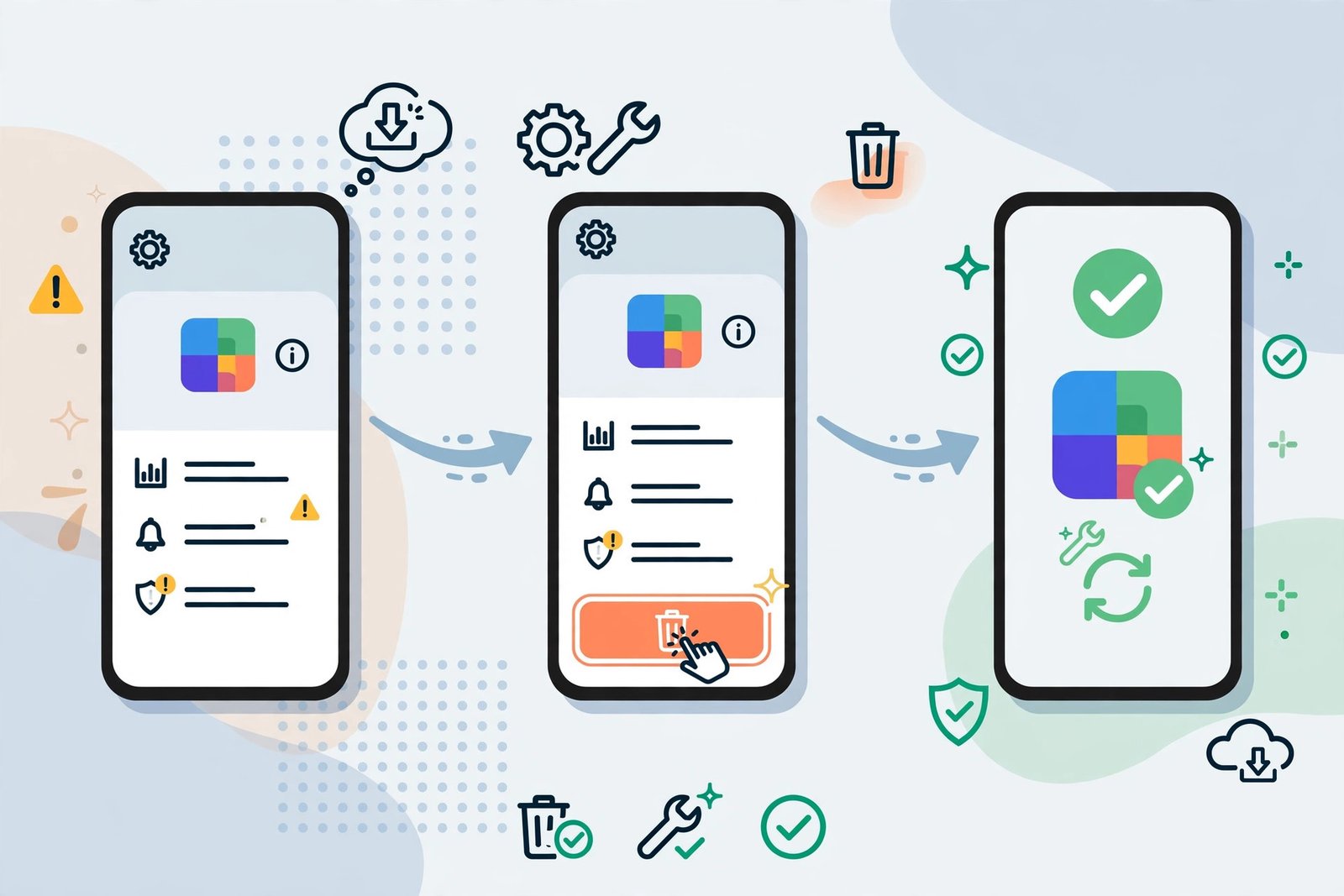
An app can look uninstalled on your main screen while a copy still exists in another profile, and that hidden copy is enough to trigger the conflict.
- Work profile: Open the Work tab in your app drawer, or Settings > Accounts / Users, and uninstall the app from the work profile too.
- Samsung Secure Folder: Open Secure Folder, long-press the app, and uninstall it there.
- Dual Apps / App Clone (Xiaomi, Vivo, Oppo, Realme etc.): Turn off the cloned copy in Settings (search “Dual apps” or “App clone”), then uninstall normally.
- Second user / Guest: If your phone supports multiple users, switch to each user and remove the app there as well.
After removing every copy, restart and install again.
Fix 4: Keep One Source – Do Not Mix Play and Direct Versions
Some developers publish the same app in two places with different builds (for example a Play build and a direct build from their website). Even when both are genuine, switching between them causes this exact error every time.
- Decide on one source and stay with it.
- Switching sources always requires Fix 2 (backup + uninstall + fresh install).
- Turn on auto-update only in the source you chose, so the other source does not push an incompatible update.
Fix 5: Re-Enable a Disabled Built-In App Instead of Installing a Copy
Many phones come with pre-installed apps that cannot be fully uninstalled – only disabled. Installing a separate copy over a disabled original can conflict.
- Open Settings > Apps > See all apps.
- Find the app, and if it shows Enable, tap it – the original app returns, and you can update it from Google Play.
- Delete the separate file you were trying to install.
Fix 6: Do Not Downgrade – Install a Newer or Equal Version
Android also blocks installing an older version number over a newer installed version, and the message can look the same.
- Check the version of the installed app: Settings > Apps > [app] (version is shown at the bottom on most phones).
- Install only the same or a newer version from the official source.
- If you truly need an older version (for example the new update broke something), that again means Fix 2: back up, uninstall, then install the older official version – and turn off auto-update so Play does not immediately upgrade it.
Fix 7: Remove the App for All Users (Leftover Data Fix)
If an uninstall was interrupted, Android can keep a “ghost” of the package for another user, which keeps blocking installs.
- Open Settings > Apps > [app name]. If the app still appears, tap the three-dot menu (if shown) and choose Uninstall for all users if that option exists on your phone.
- If the app does not appear in the list at all, restart the phone in normal mode and check again – a restart clears most leftover installer states.
- Try the install once more, from the official source.
Do not install “package remover” or cleaner tools promising to fix this. They cannot change signatures, and many of them are adware.
What You Should Never Do
- Never disable Google Play Protect to force an install. If Play Protect is warning you, listen to it.
- Never grant “Install unknown apps” to apps that do not need it (messaging or social apps asking for it is a red flag).
- Never use one-tap “fix install” tools from unknown sites – a signature mismatch cannot be repaired, only replaced by uninstalling, and tools claiming otherwise are usually the malware.
- Never share your OTP, passwords or banking details with any app you sideload. A legitimate app update never needs them to install.
How to Avoid This Error in the Future
- Install apps from Google Play wherever possible.
- If you use a developer’s official direct version, always update from that same source.
- Before uninstalling an app with important chats or files, back it up first.
- Keep an eye on duplicate copies in Secure Folder, work profiles and cloned apps.
- Delete downloaded installer files after use so an old, conflicting copy is not tapped again by mistake.
If Android cannot even read the file, see our guide on there was a problem parsing the package for the related fixes.
Frequently Asked Questions
Is this error dangerous?
The error itself is a safety feature, not a danger. The danger is what it sometimes reveals: the file you tried to install was signed by someone other than the original developer. Treat that as a warning and use the official app.
Will uninstalling the old app delete my data?
Usually yes for local app data, unless the app keeps your data in a cloud account or you use its built-in backup first. That is why Fix 2 always starts with a backup, and why Fix 1 (Play update) is better – it keeps your data.
The same file installed on another phone. Why does mine refuse?
The other phone probably did not have the app already installed (or had the same-signed version). The conflict only appears when a different-signed copy of the same package is already present – including hidden copies in work profiles or Secure Folder (Fix 3).
Can I keep both versions at the same time?
Not under the same package name and different signatures. Some phones offer official Dual Apps/App Clone for supported apps, which is the safe built-in way – but it clones the official app, it does not let a re-signed copy replace it.
I only installed from Google Play and still got this. How?
Check Fix 3 and Fix 5: a work-profile copy, a cloned copy, or a disabled pre-installed version can conflict even with Play. Removing or re-enabling that copy, then updating from Play, resolves it.
Conclusion
“App not installed as package conflicts with an existing package” is Android doing its job: the incoming file is not signed by the same developer as the app on your phone. In practice the right answer is almost always Fix 1 – use the official Google Play version. If you genuinely need to switch sources, back up, uninstall, and install fresh (Fix 2), and clear out hidden copies in other profiles (Fix 3). Anything promising to force the install past a signature check is something to avoid, not a solution. For more help like this, browse our APK Guides for other safe Android fixes.
One Comment